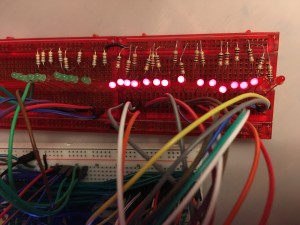
6502 breadboard computer – part 6 – shift key

Last time I added a 4×4 keypad to my 6502 breadboard computer so I can enter opcodes as hexadecimal numbers, but I was worried that I needed more keys and didn’t have enough I/O pins left.

To make a self-contained computer like a Kim-1 or an Acorn System 1, you need to be able to enter not just opcodes for instructions, you need function keys as well to step forwards and backwards through the program you enter, start it running and stop it.

I found that I did have one single I/O pin left on the VIA (versatile interface adaptor) chip – PA4. It is possible to daisy chain another 4×4 keypad using some logic, but I don’t need 16 more keys (although you could make a full alphabet keyboard that way!). So I decided to make my own simple shift key.

I added a push button, and some code to read the status of PA4. The idea is that pressing unshifted keys caused them to display on the LCD, but if I press shift and D it will step forwards through memory, shift and C will step backwards. Baby steps, if you like, towards making a full monitor program.

Thinking this was just a simple matter of sending 5v up it when the button is pressed, I just wired it between PA4 and the 5v rail. And at first, it worked! Press keys – they displayed. Press shift D, it steps forward. But shift got stuck. I let go of the shift key but it carried on behaving as if shift was still pressed. Why?

You’re probably way ahead of me here, but it was a very useful learning point. I’d heard of pull-up and pull-down resistors in logic circuits before, I knew they were a thing, but only now did I understand at a very fundamental level why they may be needed.

Pressing my shift button sent 5v up pin PA4 and changed its status from 0 to 1. But when I let go, what changes it back again? You literally need something to pull it back down to ground, 0v. Hence the need for a pull-down resistor:

diagram of a pull-down resistor

Pressing any key generated a signal on the DA (data available) pin which I use to trigger an IRQ (interrupt request) on the processor via the 6522 VIA chip. I modified my IRQ code like this.

irq:
  lda PORTA		; read contents of PORTA into memory
  sta inport
  lda inport		; read the state of PORTA back into A again - needed?
  and #%00001111	; strip out all but the key encoding
  sta inkey		; store the key value in memory
  lda inport		; read the state of PORTA back into A again
  and #%00010000	; read the shift key input
  beq no_shift		; if zero flag set, no shift key is pressed
  lda #$01		; if shift pressed, set shift flag
  sta shift
  jmp shift_cont	; skip clearing the shift flag, obvs
no_shift:
  lda #$00		; if shift not pressed, clear shift flag
  sta shift
  jmp update		; if no shift key is pressed just update the display
shift_cont:		; there was a colon missing here but it worked!
  lda #%00001111	; is the key 'd'?
  cmp inkey
  bne key_c		; if not, jump to next test
  iny			; if it is 'd', increment the location being displayed
key_c:
  lda #%00001101	; is it 'C'?
  cmp inkey
  bne update		; if not, skip decrementing
  dey			; if it is, decrement location index
update:
  jsr lcd_mon
  rti

So, some real progress. I can type hex numbers on the display and use a shift key to gain extra function keys when I need them. Next step is to enter and store real data or opcodes in memory using the keypad.


Source code: https://github.com/blogmywiki/6502

Posts in this series
Next – Part 7
Part 5
Part 4
Part 3
Part 2
Part 1

Posted in computers | Tagged , | 3 Comments

6502 breadboard computer – part 5 hex keypad

Having made a very simple proto-monitor work that allows me just to read the contents of memory on the LCD display, I decided to get a hex keypad working as a next step. Eventually I’ll use the hex keypad to enter machine code instructions I can run on the computer.

The video above shows it working and explains more, but here’s a quick explanation.

As I discovered with my micro:bit hex keypad projects, a 4×4 keypad needs at least 8 wires to connect it direct to a microcontroller. Because the LCD display is using 11 I/O pins on the 6522 VIA (versatile interface adaptor), I’m going to need some kind of encoding chip. Several other folk have used an obsolete chip called the 74C922. I got a couple off ebay for not much money. You connect it up to power, ground, a couple of different capacitors and all the rows and columns on your keypad. These membrane keypads are very inexpensive and even come with self-adhesive backs. Fablon-tastic! You press a key and it squirts data out on 5 pins.

The DA (data available) pin goes high whenever you press a key. Use this to trigger an interrupt request in your program to then figure out what button you pressed and what to do next.

Here’s a very rough schematic of my Ben Eater-style computer with a bit more detail on the keypad:

breadboard computer schematic

The 4 pins A-D send out 16 different patterns of signals, in effect a binary number encoded in a 4-bit nibble, each binary number representing a different key.

My test program literally just types the characters on the LCD display using a neat trick from another breadboard computer enthusiast Robin Harris. Robin’s taken a slightly different approach to Ben Eater to save pins, and his project is well worth a look. Having read this 4-bit value sent from the key encoder chip to port A on the VIA, you use this to offset or slice a string containing all the possible characters.

table of keycodes

Because of the way my keypad is wired up, I need to use the string ’174*396#2850ACBD’ rather than something more logical, but it works just fine and I thought it was easier to change one line of code than do lots of re-wiring.

Now this is great but it leaves me with a problem: to make a working computer I need at least 4 more keys, maybe more. I’ll need to be able to scroll backwards and forwards through memory, enter data, run the code and stop it so I can drop back into the monitor program without pulling the power and losing all my hard work typing the program in.

There are a few options here. I could re-wire and recode so that the LCD works in 4-bit mode. This would be a pig to program, but would free up 4 more precious I/O pins on the VIA. Or I could try and add a shift key or even another 4×4 keypad – the video shows how this is possible with the 74C922 encoder and a bit of logic. Both those last two solutions require one more free pin. In the video you’ll see me realise that I actually do have one spare, as I think PA4 is currently unused.

Watch this space!

Source code: https://github.com/blogmywiki/6502

Posts in this series
Part 6
Part 4
Part 3
Part 2
Part 1

Posted in computers | Tagged , | Leave a comment

6502 breadboard computer part 4 – first monitor

I’ve been following Ben Eater’s tutorials to make a breadboard computer based around the classic 1970s processor, the 6502. This CPU was used in many classic 8-bit computers including the Apple 2, BBC Micro, Atari VCS as well as the first two computers I ever used, the Kim-1 and the Commodore PET.

I’ve pretty much caught up with Ben’s tutorials now, and reached a point where I’m probably going to diverge from his project. My aim is to make a computer like a Kim-1 or Acorn System 1: a single-board, self-contained computer with a simple display that you can program using machine language on a hexadecimal keypad.

photo of breadboard computer

As a start, I managed to create a program that displays the contents of memory locations. On the first line of the display it shows the address, the contents of that location in hex and then an ASCII representation of the byte in question. You step forwards through the program using a button connected just like Ben Eater’s counter button.

It’s a very small step towards a working monitor program, but quite pleasing to have made. I decided just to start at address #8000 – the ROM – because I know what’s in the ROM and can check the results against the display. Obviously eventually this will cover RAM addresses and allow you to enter new code and run it.

This program only scrolls through 256 locations, but I suspect that’ll be enough for hand-entered machine code programs. I’m unlikely to add any storage devices to this computer, unless anyone has a spare punch tape reader…

Watch the video above to find out more about how it works and find my source code here: https://github.com/blogmywiki/6502

Next step: add a hex keypad!

Posts in this series:
Part 5
Part 4 – you’re here!
Part 3
Part 2
Part 1

Posted in computers | Tagged , | Leave a comment

6502 breadboard computer: part 3 – the return

I last posted way back in October 2020 about my progress with my Ben Eater-style 6502 breadboard computer. Having my own Kim-1 or Acorn System 1 type single board computer was a childhood dream, and several decades later I was building my own, finally feeling I could look that kid in my school computer club who built his own SC/MP-based computer in the eye. Finally. Forty years later. But, finally.

I had managed to connect an EEPROM which I programmed with one of Ben’s programs, and I made a simple clock from some 555 timers that allowed me to single-step or run programs very slowly. I don’t have an Arduino Mega to use for debugging, so I diverged from Ben’s layout by adding 8 green LEDs across the data bus and 16 red LEDs across the address bus. This decision proved to be one of my better ones.

new layout of my 6502 breadboard computer

I added a 65C22 VIA (versatile interface adaptor) and managed to get text to print out on an LCD display. I then decided to rejig the layout a bit to give better access to my data and address busses, and to put the EEPROM in a more accessible place – and that’s when disaster struck.

Nothing worked any more. I could not fix it. I decided I had used the wrong wires, damaged the breadboard, broken something fatally and put it away in a box and left it for a few months.

Picking it up again, I’ve now got it working, added RAM so that you can use the stack, and hence use subroutines. You can’t use subroutines in 6502 assembly language without RAM, because it puts the return address on the stack, and without RAM you have no stack!

I also added a 1 MHz crystal oscillator clock, and today I got interrupts working. I didn’t bother with Ben Eater’s binary to decimal conversion code, I just made it print a different piece of text when you press a button. But it works! I now want to add more buttons, and I know that involves port A on the VIA, but I’ve caught up with Ben Eater now, I need him to make some more videos!

Some words of advice to those of you thinking of making a breadboard computer from scratch:

It’s a good idea!
I’ve re-learnt and learnt some more assembly language, debugged a program literally bit-by-bit – you can’t get closer to the metal than that! I’ve also discovered how CPU interrupts work, and generally found working with fundamental building blocks of hardware and software very satisfying. And yes, resilience… debugging in binary, for an hour… oddly therapeutic.

Slave to the layout
You’re probably better off following Ben’s layout slavishly if you’re new to this. But…

debugging with blinkenlightsBlinkenlights are good
Adding data and address bus blinkenlights is very useful, especially if you don’t have an Arduino Mega to monitor the ports. You could probably add them on separate breadboards and keep Ben’s layout if you’re clever with the wiring. I only fixed my faulty board by single-stepping through a program, and reading every address and piece of data in binary, converting it to hex and decoding it. I discovered that my program wasn’t ever returning from a subroutine, meaning a likely RAM problem. And sure enough, I found a loose wire on the RAM chip. It took me an hour, and I now can read LDA and STA instructions in binary, but it worked. I hadn’t broken anything fatally, it was just a loose wire. Plus, blinkenlights are cool.

Burning EEPROMs
You get to burn EEPROMs. Burning EEPROMs is magic. It’s cool. And you don’t even need UV light to erase them any more.

How do you make your breadboards look so messy?
Watch Ben’s video on how he makes his breadboards so neat. He hadn’t posted it when I started. That’s my excuse.

Like clockwork
Hmm, the clock. I skimped on my clock design, thinking I knew best. Sure I have no logic probe, no oscilloscope, no Arduino Mega to read the busses, but how hard could a darn clock be to make, right?

Well, here’s the thing. As soon as I added the 1 MHz crystal clock, things just started working, well, not just faster (obviously), but better. More reliably. I still get the occasional glitch, but generally my computer seems to work so much better now.

So I now think a lot of the problems I had earlier were with my clock, not giving clean pulses. So if you want to build a clock that allows single-stepping and variable slow speeds (which I think is essential for this kind of project, for learning and debugging), then put in the effort and build a nice clock. Listen to Ben. Even if you think his design is over-engineered.

Where does it go from here?
Not down to the lake, I fear.
Ideas…
- Add moar buttons. No idea how to code them!
- Add a hex display to the data bus – Ben’s video on using EEPROMs to replace a squillion logic gates is very cool. The chip he uses is now obsolete, what would be a good replacement?
- Eventually some kind of monitor program and a hex keypad at least. This is a very far-off goal.
- Add a thermal printer, Aim-65 style.

Code
My modified versions of Ben Eater’s assembly language programs can be found here: https://github.com/blogmywiki/6502

Posted in computers, hardware | Tagged , | 2 Comments

The distraction of distraction-free word processors

I’m currently not writing at least three books. At least one of them, I am convinced, is an amazingly good idea. I’ve written a dozen chapters, at least one of which doesn’t make me cringe when I read it back, but when it comes to the actual paperwork of finishing one… it just doesn’t happen.

The Freewrite

Of course a bad workman blames his tools, so when the Freewrite distraction-free word processor came out a few years ago, I was smitten. It’s a self-contained, portable word processor with an e-Ink display (I love e-Ink displays, they seem indistinguishable from magic to me) that allows you to type and backs up your work to the cloud via wifi but does not allow you to browse the web, Twitter etc, hence ‘distraction-free’. But it’s expensive. Way too expensive for what it is at around $600 – though it is currently on sale for less. As this review points out, you could buy a cheap laptop and a copy of Scrivener and still have money left over to buy a whole other laptop if you break the first one. I think the slowness of the eInk display updating as you type would also be a killer for me. My typing is poor, I really do like to correct typos as I go.

I’ve discovered that there’s no better distraction from writing than researching distraction-free word processors. Here are some personal boxes any solution needs needs to tick:

The wish list

  • Constant on-screen word count – essential
  • Inexpensive
  • Portable
  • Nice clacky keyboard
  • Rich text format editing – italics and bold are a must, ability to change text size and font not so much.
  • Default text size should be large or able to make it large for my poor eyesight.
  • Save in .rtf for similar format so docs can be opened easily by many other apps
  • Paste unformatted text by default
  • Pale yellow page background, not white – or customisable
  • Left, right, centre align options
  • Icons on toolbar not necessary, can just use keyboard shortcuts and menu
  • Show clearly if file is currently unsaved
  • Open by default with last document open
  • Smart quotes
  • Possible cloud backup but it could just save in a Dropbox folder
  • Possible FTP backup
  • Possible timestamp save for keeping each version – option perhaps? Every save gets a new date and timestamp.
  • Images probably not required for fiction
  • Tables probably not required for fiction
  • Runs full-screen

There are lots of apps out there, this is not an exhaustive list by any means, but here are some alternatives to the Freewrite that I’ve considered:

Pen and paper

When the Freewrite was first announced and I was swooning over it on Twitter, someone sent me a photo of a notepad and a biro with the caption ‘my ultimate distraction-free word processor’. And they have a point. Only the other day I read that Sylvia Townsend Warner ‘began her self-proclaimed “accidental career” as a poet after she was given paper with a “particularly tempting surface” and who wrote her first novel, Lolly Willowes; or, The Loving Huntsman (1926), because she “happened to find very agreeable thin lined paper in a job lot.”’ [https://www.britannica.com/biography/Sylvia-Townsend-Warner]

Would that it were so simple.

I need to be able to edit, process text. I need it to be backed up. It’ll need typing up eventually, so although pen and paper is great for jotting down ideas, I am going to eschew the methods of all those great writers, including Muriel Spark, who always wrote in the same kind of notebook from an Edinburgh stationers, all those writers who just need a good pen, good stationery and start writing at the beginning and keep going until they finish.

So I really do need a gadget.

Coding my own: WoolfWrite

How hard could it be to write a word processor? Not actually that hard, I discovered.

The Freewrite was originally called Hemingwrite, so years ago I fantasised a cheap gadget called WoolfWrite in response. More recently I decided to explore coding one in Python using the simple GUI tool guizero, and here’s how far I have got with it: https://github.com/blogmywiki/woolf-write.

WoolfWrite screenshot

There’s plenty this does not do, it’s plain text-only for example so no bold or italics, but it ticks a few important boxes: on-screen constant word count, large text, no distracting bells and whistles, it warns you when your work is unsaved. The code is pretty simple and if you know even a little bit of Python you can modify this to suit your needs and it’ll run on pretty much any Mac, Windows or Linux machine with Python 3 and guizero installed. If you run it in a Dropbox folder, for example, that could even look after the cloud backups for you.

WordGrinder

Now this found a place in my heart when I discovered that this text editor that runs in a terminal window was written by someone as a distraction from writing a novel. Its author, David Given, is a man after my own heart.

WordGrinder on a PiZero

WordGrinder ticks a lot of boxes: it’s fuss-free, and although it’s intended to be run in a window on your desktop, I managed to get an old Raspberry Pi Zero to boot straight to it with no GUI installed at all (pictured below stuck to the underside of a nice old clacky Apple USB keyboard). The major drawback so far is bot being able to get italics to display on either my Mac or on the Pi – indeed on the Pi italics and bold show up the same, which is not great, but I was able to fiddle with a few settings on the computer to get it to display the text in a lovely retro green reminiscent of the Amstrad PCW word processor. And this boots fast using DietPi as its OS.

piZero stuck to keyboard

I love the timestamped auto-save feature, I considered something very similar for WoolfWrite but there are some drawbacks – no cloud backup yet, though maybe a cron job and FTP could work, or perhaps just adding a USB stick for backup. It also uses an esoteric file format rather than RTF or similar, but it can export in various different useful file formats.

If I can fix the italics issue on a GUI-less PiZero and sort out some backup, then this is an insanely cheap solution. The PiZero was a freebie with a magazine and was unused, and the keyboard was also junk. With a small HDMI display I’d have something close to this intriguing home-made version of the Freewrite: https://www.instructables.com/FeatherQuill-34-Hours-of-Distraction-Free-Writing/ .

I’d love to tweak WordGrinder myself, but that’s beyond my coding skills just now as it’s written in C. Which brings me to…

Code or modify my own using Python / PyQT

I did actually get quite far with following this tutorial and modifying the code to suit my needs, which I could do because it’s written in Python. It’s tantalisingly close to what I want, but PyQT is a bit of a heavy dependency and I found this project’s native HTML file format a bit infuriating – although a kind soul on Twitter helped me work out how to export the text to RTF format. (I did want to add RTF format to WoolfWrite, but heavens RTF is a weird format when you look inside it!)

I may come back to this and do a proper write-up of how I stripped this down and made it do more of the things I wanted (like adding a constant on-screen word count, basic formatting keyboard shortcuts and filename display) and fewer of the things I didn’t (e.g. removed infuriatingly duplicated tool-tips and made it paste unformatted text by default – you have no idea how happy the latter made me! All apps and OSs should paste unformatted text by default, you almost always want it to match the destination not the source.)

gileswrite screenshot

.

Google Drive or Dropbox Paper
Google Drive is what I currently use for creative writing and there’s a lot to be said for it, though obviously both of these require internet access and a laptop and all the distractions that affords. Dropbox Paper is nice because its formatting is so limited – for example you can’t change font, and I strongly approve of that, but its chirpy messages when you open a new document annoy me so much that I’ve started making my own sarcastic ones for WoolfWrite. Also Dropbox Paper has limited file export options and frequently tells me I’ve lost my connection when I know my wifi and broadband are just fine, so I’m ruling it out for the great novel project.
Who do you think you are? Ernest Bleeding Hemingway?

Just use the laptop you already have, turn off the damn internet and write

I admit it’s hard to argue against this, and numerous free and paid-for distraction writing apps are out there for you to use, though I couldn’t find one that did precisely what I wanted, which is why I started trying to write or modify my own. A cheap old netbook and some version of either the Python PyQT app or WordGrinder could well be the way to go.

Remember, a bad workman blames his tools.

A writer writes, always.

The night was hot, wait no, the night, the night was humid. The night was humid, no wait, hot, hot. The night was hot. The night was hot and wet, wet and hot. The night was wet and hot, hot and wet, wet and hot; that’s humid. The night was humid.

“Chapter 1. It was a dark and stormy night…”

Posted in computers, literature, lowendmac, Raspberry Pi | Tagged , , | Leave a comment