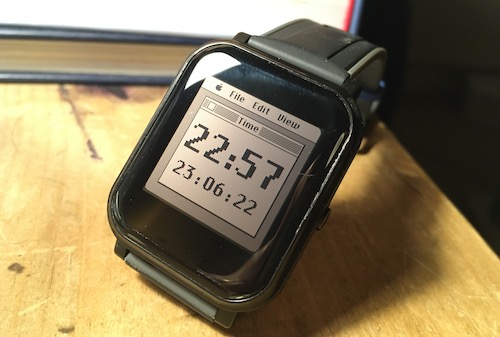
Back in November 2021, I got a BangleJS2 hackable smart watch, having backed it on Kickstarter. It’s no Apple Watch, for sure, but it’s much cheaper and you can write your own apps for it really rather easily, in JavaScript. I particularly like the always-on display which is readable in direct light, especially in dark mode, and also has a backlight. It’s built on top of an inexpensive generic smart watch, the Shenzhen Smart Care Technology SMA Q3. You may think the BangleJS2 has a bit of hefty mark-up, but you’re getting a watch modified with new firmware making it easy to program, plus a community of support and a huge range of apps to download.
I said back in November that I wanted to get Susan Kare’s classic 1984 Macintosh font Chicago working on it. Well, I’ve now made a watch face inspired not just by the font, but by her whole design for the original Macintosh Finder desktop. I’m grateful to @peerdavid for helping me improve the code so that the time displayed was more accurate, widgets still run in the background and getting it to work when your watch is in dark mode, which normally looks much better.
Let me know if you have ideas for how to improve it. My ideas include showing seconds when you unlock the watch, some way of including widgets, text dates, and maybe showing some other data when you tap the window.
If you have a BangleJS2, you can download the app here. And if you haven’t got one of the watches yet, you can still run the clock in the emulator and have it on your desktop.
I have a few old Raspberry Pis lying around, including a Model B Rev 1 running Raspberry Pi OS Buster lite. I use it to serve up my simple MUD game. It has no wi-fi so it’s connected by ethernet to my router which also gives it power over USB. I really must write that up some time.
Anyway, I have a whole bunch of cheap, tiny 1306 i2c OLED 128×64 pixel displays so I thought it might be fun to see if I could use one as a little shell display so I could do some basic admin on the headless Pi locally, just with a USB keyboard.
It took way longer than I expected, especially given I found someone had already done this, but it works. Here’s how I did it. Please bear in mind… my Pi is very old, I’m using Buster Lite as my OS, my OLED display’s address is 0x3C, it’s set to auto login to a command prompt, no GUI – your mileage may well vary!
It’s based on this project: https://github.com/satoshinm/oledterm – however, that was written in Python 2, uses a newer Pi, uses an spi not i2c interface, and because the OLED display libraries now only work in Python 3, I couldn’t get it to work. Issue #4 on that repo was the key to solving this, but I thought I’d summarise how I got this to work.
First, I connected the display. GND on the display to GND on the Pi, VCC to +3.3v on the Pi, SDA to Raspberry Pi pin 3, SCL to Pi pin 5 – remember this is an old Raspberry Pi original model B!
I installed git and downloaded oledterm: git clone https://github.com/satoshinm/oledterm
This wouldn’t run for various reasons – not least because I needed to install luma.core to drive the OLED display, and I needed to install pip to install that: sudo apt install python3-pip
sudo -H pip3 install --upgrade luma.oled
Then I copied the Python 3 version of oledterm from here and saved it as a file called oledterm3.py
I then edited /etc/rc.local to add this: sudo python3 /home/pi/oledterm/oledterm3.py --display ssd1306 --interface i2c --i2c-port 0 &
exit 0
I also edited go.sh the same way. Let me explain the options in more detail. My display type is set to ssd1306, this is a very common kind of small OLED display. If my display’s i2c address were not 0x3c, I’d have needed to add an option to change that here. I specify the interface as i2c, rather than SPI as used in oledterm, and because I have a very old Pi I need to specify the i2c port as 0. With a newer Pi you could probably omit –i2c-port, or set it to 1.
I then unplugged the HDMI display, and rebooted – and lo! I could just about see a tiny shell and use my USB keyboard to type instructions! I could even edit text in nano – just about! Who needs more than 31 columns and 9 rows of text, anyway!?
Years ago I remember thinking how amazing it was that the Raspberry Pi could be turned into an FM radio transmitter with nothing more than a short piece of wire and some code. Back then you could only transmit audio files in a very particular format and it very much seemed like a novelty.
Fast forward to 2022 and it seems things have moved on a bit. Reading a blog post about reviving old radio pagers, I finally caught up with rptix. This suite allows you to turn an old Raspberry Pi into a little radio transmitter that can broadcast in a stunning range of formats and frequencies: FM, AM and SSB radio, slow-scan TV, pager data and many, many more.
Now you probably won’t be doing this as it’s probably illegal to broadcast on most frequencies where you live, and if you find a legal frequency you’d need to add some filtering before attaching any kind of physical antenna, or indeed a wire, to pin 4. The only other things you’d need are an old Raspberry Pi, an internet connection and an old FM radio (with RDS if you have one).
Years ago in Brighton, I’m told, someone used to illegally rebroadcast my favourite radio station, the French music station fip, on FM. I was curious to know if a Raspberry Pi could do the same trick, albeit on a much smaller scale, within a couple of rooms.
I didn’t do this, of course, but if you were so minded, it looks like this is, hypothetically, possible. You could even broadcast RDS station name and text too. This is what you might, hypothetically, do:
This would stream fip radio and broadcast it on FM on 107.5 MHz FM, with the RDS station name ‘fip’ and the scrolling text ‘en direct a Paris’ (You could try an accented à but it doesn’t seem to support unicode!).
I’ve been thinking of ways of sharing Python programs on Twitter and I’ve come up with something a bit crazy, but which might have other uses.
The micro:bit Python emojifier encodes and condenses Python programs using emojis. It also decodes them too, and turns strings of emojis back into full Python programs.
Many keywords are tokenised, in effect, into a single character. This means the programs take up less space, and so you could, for example, share longer programs in a tweet. I used carefully-chosen emojis so even the encoded programs can be read by humans. Our old friend the teleporting duck:
from microbit import *
import radio
radio.config(group=23)
radio.on()

while True:
    message = radio.receive()
    if message:
        display.show(Image.DUCK)
    if accelerometer.was_gesture('shake'):
        display.clear()
        radio.send('duck')
It may also encourage reluctant students to engage with coding concepts by presenting them in a new, but familiar visual language. The emojis are, in effect, a visual abstraction of programming concepts.
Programs written pictorially could appeal to those who struggle with reading or find large blocks of text hard to process, in a way not even block coding can manage,
Maybe students could even write Python programs using emojis. It might make Python more accessible to those who only have mobile devices.
This is very much optimised for Python on the BBC micro:bit, but perhaps it could be applied to other languages.
Numbers stations are / were spooky shortwave radio stations, best known from the Cold War, which broadcast human voices reading numbers, usually in groups of five. It’s widely assumed these were / are used by many nations for communicating with secret agents in foreign countries, using an unbreakable one-time pad cipher.
Or you can code a BBC micro:bit to be come your very own numbers station!
Use one of the micro:bit Python editors (such as the lovely new official online one) to flash the program below on to a micro:bit. If you have a micro:bit V2 you can hear the numbers from the built-in speaker, otherwise attach some headphones or an amplified speaker to pin 0 and GND.
If someone can add some code to play The Lincolnshire Poacher as well, I’d be very happy indeed.
from microbit import *
import speech
import random

numbers = ['zero', 'won', 'too', 'three', 'for',
          'five', 'six', 'seven', 'ate', 'nine']

while True:
    for i in range(5):
        speech.say(random.choice(numbers))
        sleep(500)
    sleep(1000)