Teaching algorithms in Year 1

There have been many challenges in my new role as a primary school Digital Learning Co-ordinator: teaching Computing to 3 Reception classes in a formal ICT room with desks and PCs designed for adults, adapting and evolving a curriculum on the fly depending on what’s actually working on any given day… and finding the light switch. Seriously, it took me 10 minutes on my first day to find the light switch in my classroom. In my defence it is in a daft place. And it was dark.

I inherited a UK Year 1 (ages 5-6) scheme of work that was all about typing and word processing in the Autumn term. We did do some of that, navigating a QWERTY keyboard labelled in capital letters (why‽) is quite a challenge for those still acquiring reading skills. I wanted to do some coding – but what to use? Scratch is a bit too wordy and fiddly for many in Year 1, ScratchJr requires tablets and I currently only had Windows PCs. We have no Beebots nor the space in the ICT room for a whole class to use them.

I asked on Twitter what web or PC-based resources might get the youngest children assembling some kind of code… and the silence was profound. So I decided to invent my own. In Scratch, of course.

Now this still needs a lot of work, but I taught my first lesson with this today and I have to say it kept a class of Year 1s engaged for almost an hour.

The aim is to navigate an animal towards randonly-placed food by giving the computer sets of instructions in the form of directions. Don’t like dinosaurs? Click on the animal until you find one you do like.

The yellow blocks are the instructions. Click on the 1st column blocks to make get arrows in different directions and click the ‘go’ button.

Didn’t reach the target? Click on the blocks in the right-hand column to add numbers of steps in each direction:

When you reach your target, you are rewarded with a point, a round of applause and a new random food to catch. You can press D to display the date, N to enter their name and screenshot & print for evidence of progress.

Before we started, I explained the lesson and one 5 year old girl said ‘are we going to teach the computers?’ – I could have punched the air. Another, unprompted, talked about sat navs helping us find our way round – another example idea I hadn’t thought of. But he was 6 years old.

I was worried this simple activity would not last 20 minutes, let alone an hour, but they were really engaged with it for the whole lesson, I had to tear some away from their screens. Scores varied from 0 to the high 20s. The pupil who got 0 admitted to being frustrated – she found manipulating the adult-sized mouse difficult but she got tantalisingly close to the target at the end of the lesson – with some support she did not give up and was happy to tell the rest of the class how challenging it was. Another pupil scored only 4 but I was immensely proud of him for sticking with one challenge that was driving him, literally, round in circles. He was so proud when he finally cracked it, and we had a class discussion about there being many ways of solving problems which can be different but all valid. Sound familiar? Look at Stack Overflow. Actually, kids, don’t.

They came up with lots of great ideas for improvements: more choice of animals (specifically velociraptors and bush babies!), a ‘clear’ button, more targets you have to reach in order, making the coloured lines more distinct, speed the game up (click ‘go’ too soon and it goes a bit crazy). About half the class liked my idea of maze-type levels, but I think the freedom to plough your own route leads to a fascinating diversity of route solutions from the children and the possibility of challenging them to produce more efficient routes with fewer blocks of code.

Year 1 came into my class today asking if they were going to do some more typing. They left having begun to understand of of the fundamental ideas behind programming, giving computers very simple sets of instructions in order.

UPDATE
A second Year 1 class found this game much more challenging, and the version now embedded at the top of this post has been tweaked according to their suggestions. The animal is placed in the middle of the grid (ish), making it in some ways easier (you can reach it in 9 steps up or down) but more challenging and interesting because you may have to go in any direction, not just up and right. Fascinating how two classes in the same school, not setted or streamed, can react completely differently to the same task.

UPDATE TO THE UPDATE
The latest version of this project (embedded at the top of this page) is further improved with ideas from more Year 1 children. Five year olds are way better at designing these things than grown-ups, and I really wish I’d been able to cook up a multi-player version – one day, one day. But this new version 3 has added maze levels. Get 5 points, you get a maze, 10 points a new maze, and 15 points you get yet another. I’ve also changed the behaviour so that the arrows won’t move the animal unless they have numbers associated with them. There are often still different ways of reaching the target, but this should be much more fun to play.

Posted in computers, education, ICT | Tagged , , , , | Leave a comment

Getting to grips with the mouse

I’ve recently found myself with the challenge of teaching Reception age children Computing not in their own classroom, but in a traditional ICT suite with desks, PCs, keyboards and mice that actually aren’t even designed for Year 6 children, they are designed for adults.

The curriculum I inherited has them using Paint, but I soon discovered little hands cannot grip the mouse well – learning to hold it at the top and press the left button, not the right, no not the right, no not the wheel, the LEFT button… is Quite Hard.

I took inspiration from one of my favourite books: Stephen Levy’s Insanely Great, the story of the creation of the original Mac computer in the early 1980s. Some users struggled with the (one button!) mouse. Someone hacked a game with flies popping up round the screen. Use the mouse to swat the flies. Go.

So here are two very simple, but I hope effective, resources I made to help KS1 children with tiny hands get to grips with adult mice. I made them in Scratch, of course. I tested them with Year 1 to get feedback (“it’s boring!” – young kids are refreshingly honest), and made some tweaks before unleashing them on Reception next week.

In the first game, you move the mouse round the screen and click on the food to get points. Every 10 points the food and the backdrop changes. Get 100 and you become a Mouse Master. You can assess ability by noting scores at the end of a timed period.

The second game is a bit more complex. It requires the children to click on arrow buttons to guide the caterpillar around the screen to eat fruit. There are points and levels, the fruit gets a bit harder and on the last level there are unhealthy foods to avoid as they lose points. Year 1 loved this and got very competitive.

I’ve used Scratch many times for making teaching resources – including teaching binary and logic in KS3 – I really recommend it. And getting young learners to be your beta testers.

Posted in computers, education, ICT | Tagged , , , | Leave a comment

More adventures in thermal printing

I’ve been rediscovering my old Sparkfun serial thermal till roll printer, the one I used for my Little Box of Poems, a connected IoT printer, printing from the BBC micro:bit and other projects. These printers are great fun and can also be bought from Adafruit and Pimoroni.

Using an old Raspberry Pi 2 (serial thermal printers don’t work very well with Raspberry Pi 3s) I made a networked CUPS printer that… sort of worked:

I used this Adafruit tutorial and could print artwork or photos from any computer on the home network. Printouts were rather faint, however – possibly because the power supply for my printer doesn’t have enough oomph (though it is 5V, 2A which should be enough). I also get corruption when I try to print long graphics, and I’m not sure why.

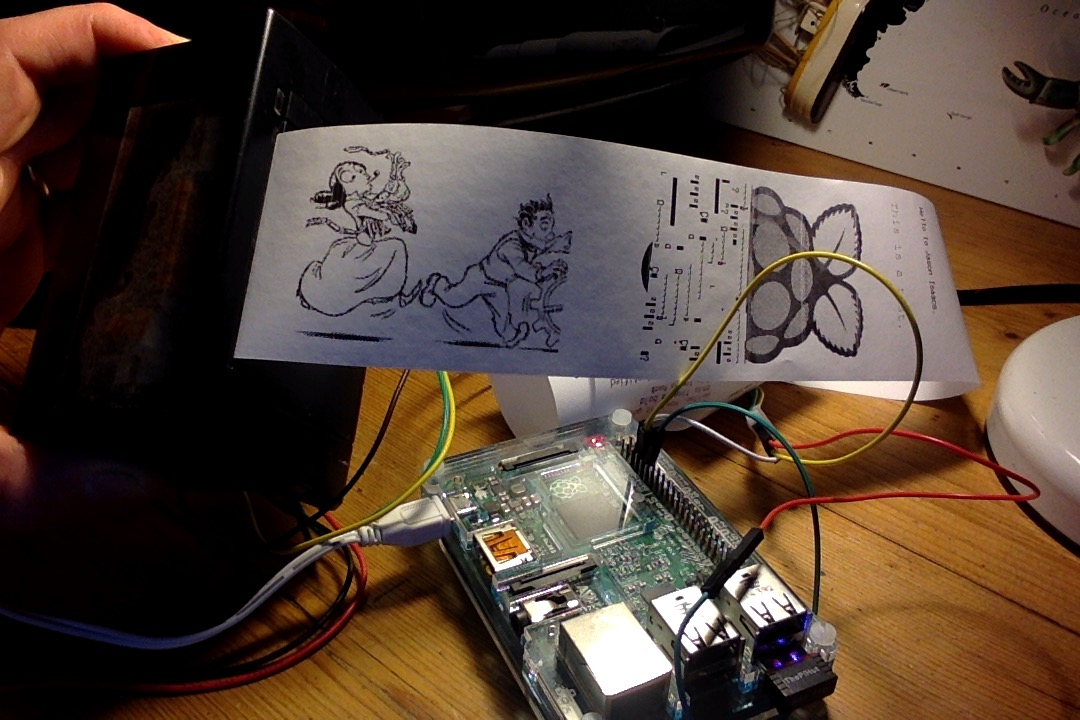
Next then used this Python program to print text and graphics directly from the Pi. This worked much better as it allowed me to increase the heating interval and heating time – this results in slower, but much darker, prints. It will only print graphics in black and white with no dithering at all, unlike the CUPS printer. In this example the top logo is printed from my MacBook using the CUPS driver, the one below printed directly on the Pi using Python:

Here you can see a photo printed using CUPS (dithered) and then using the Python luopio script (no dithering, just black and white). Plus a bonus Ada Lovelace cartoon:

I did find that if I printed something using the Python script (increasing the heating time) this seemed to stick and the CUPS networked printouts were clearer – although still, infuriatingly, corrupted.

I was then rummaging round the web looking for ideas when I stumbled upon @techcoed’s post about sending messages to a pipsta thermal printer from a web page. This seemed like a neat idea so I half-followed his guide and then mashed his code up with the luopio serial printer library. (The pipsta uses USB and is a different kind of printer entirely). And I got it to work! I can run a Python script on the Pi, go to the Pi’s IP address in a web browser on any phone, laptop etc on my home network, type in a message and it prints out on the thermal printer:

Here’s how I did it… (link to files at the end of this post).

I did not install flask as it was already on my Pi – see the pipsta instructions if you need to do this. The printer was already connected to the Pi’s serial output as per previous blogposts.

First I tweaked Dan’s HTML a bit (I couldn’t see a button!) and saved it in a file called print-form.html in a new folder called ‘templates’ (lower case ‘t’) that I made in the /home/pi/ folder.

I then made a new Python file called flask-print.py and saved it in the /home/pi directory. This was a mashup of Dan’s code and the serial Python printer code. Having made sure I knew the IP address of the Pi on my local network, I ran the Python script from the command line with sudo python flask-print.py

Then I pointed my laptop web browser to my Pi’s IP address, typed words in the form, pressed ‘send’ and the message appeared on my printer!

You can download a .zip file containing both the Python script and the HTML file by clicking on this link. Let me know if you use this and if you have any ideas for it.


Posted in computers, Raspbian | Tagged , , , , | Leave a comment

Coastal webcam with weather and tide data

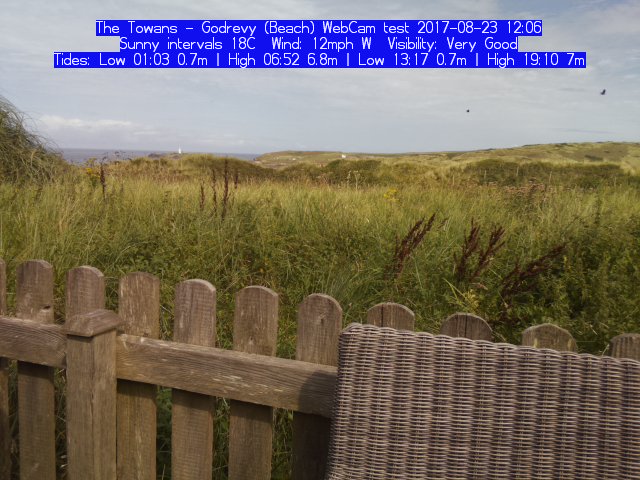
Following on from my Raspberry Pi e-Ink display tide time project, I’ve made a web cam that will tweet photos overlaid with weather and tide information for any UK coastal place. It uses the official Raspberry Pi camera module.

Like the InkypHAT project, this uses Beautiful Soup to screen-scrape the UK Met Office web site, but a more general web page that has much more weather data, such as visibility, wind speeds and so on. Where my e-Ink project was designed to run once day, early in the morning, this can run hourly and should always give the current weather information.

You can tweak this code to work on pretty much any UK coastal place – all you need is the geohash code for your location, which you can find by browsing the Met Office web site and taking the final part of the URL: For example, Godrevy in Cornwall is gbujsuykk because the weather page is found at http://www.metoffice.gov.uk/public/weather/forecast/gbujsuykk.

Here’s what you need:

  • A Raspberry Pi computer with internet access (wifi or ethernet) and a recent version of Raspbian.
  • A Raspberry Pi camera module.
  • Some power.
  • A suitable seaside location with a nice view .
  • Optional: a weatherproof container for the Pi and camera to aid location.

First, install Beautiful Soup on the Raspberry Pi:
sudo apt-get install python3-bs4
This is a Python library that makes extracting data from other web sites much easier than it would otherwise be.

Next you may need to install the picamera library. This is a Python library that makes using the official camera module easier. You probably already have it, but check the installation page if you are not sure.

A weatherproof outdoor enclosure would be a good idea – lacking that on holiday I improvised in a Heath Robinson fashion with some cotton and blutak which lasted a few days, until someone opened the patio door and the whole thing rather fell apart:

Finally, if you want to tweet your photos you will need a Twitter account that has been verified with a phone number to get your Twitter API keys. You’ll also need to install the twython library. I recommend following the excellent instructions on the Raspberry Pi education web site: Getting Started with the Twitter API.

I learned a bit about the picamera and twython libraries in our Picademy photo booth project, and this builds on my learning there.

You can customise the code below with different locations and screen resolutions. When you run it, it will show a preview image for about 5 seconds and I suggest commenting out the line
twitter.update_status_with_media(status=message, media=photo)
when you are testing it to avoid spamming Twitter. Note that the preview image is only visible on the Pi’s HDMI output – you cannot see it over VNC*, as the camera module sends data straight to the Pi’s graphics chip. It also doesn’t save the photos. Each one is called webcam.jpg and is overwritten when a new one is taken, though if you do keep them you can make a time-lapse sequence (click on image below for animated GIF loop – look carefully and you can see the tide come in and go out):

* UPDATE – I’m a bit late to this, but you can see Raspberry Pi camera previews over VNC – see this official post on using a free RealVNC login to view remotely things like camera module previews and Minecraft that write straight to the graphics chip. I’ve tried this now and it works! Look for the section headed ‘PLAYING MINECRAFT AND OTHER DIRECTLY RENDERED APPS REMOTELY’.

You could do something clever to change exposure times or ISO settings at different times of day or depending on the weather – I haven’t tested this at night yet, but I suspect you won’t see much!

To automate the process I recommend using crontab – you can easily configure this using the Raspbian PIXEL desktop, just go to System Tools and Scheduled Tasks, for example to run every hour:

Here’s the Python code. I’m finding my way with Beautiful Soup and it may be very inefficient. Also I must give a disclaimer that the code may break at any time if the Met Office change their web site and no accuracy is offered for the tide time information – always cross-reference with another source if going out on the coast.

#!/usr/bin/python
# -*- coding: utf-8 -*-

# written by Giles Booth
# http://www.suppertime.co.uk/blogmywiki
# a coastal web cam using official Raspberry Pi camera
# based on my Picademy photobooth without buttons or filters
# and my InkyPHAT tide time project

from picamera import PiCamera
import picamera
from time import sleep
import datetime as dt
from twython import Twython
import requests
from bs4 import BeautifulSoup
import string

from auth import (
    consumer_key,
    consumer_secret,
    access_token,
    access_token_secret
)

twitter = Twython(
    consumer_key,
    consumer_secret,
    access_token,
    access_token_secret
)

def strip_non_ascii(string):
    ''' Returns the string without non ASCII characters'''
    stripped = (c for c in string if 0 < ord(c) < 127)
    return ''.join(stripped)

# Visibility (E = Excellent, VG = Very Good, G = Good, M = Moderate, P = Poor, VP = Very Poor)
visibilityDict = {'E': 'Excellent', 'VG': 'Very Good', 'G': 'Good', 'M': 'Moderate', 'P': 'Poor', 'VP': 'Very Poor'}

# Fetch weather & tides page from Met Office web site
# Find other geohash location codes on the site, eg
# Godrevy, Cornwall gbujsuykk
# Walton-on-Naze u10yuyqrf
# Gt Yarmouth u135pr5sv
page = requests.get("http://www.metoffice.gov.uk/public/weather/forecast/gbujsuykk")
soup = BeautifulSoup(page.content, 'html.parser')

# extract full location name
location = soup.find_all('h1', class_='offScreen')[0].get_text()
location = location.strip()
print(location)

#extract temperature
nowTemp = soup.find_all('i', class_='icon icon-animated')[0].get_text()
nowTemp = strip_non_ascii(nowTemp) + 'C' # picam cannot overlay degree signs
nowTemp = nowTemp.strip() # remove trailing and following spaces
print(nowTemp)

# extract outlook
weatherRow = soup.find('tr', class_='weatherWX')
weatherDescs = weatherRow.find_all('td')
weatherNow = weatherDescs[0].get('title', '')
print(weatherNow)

# extract wind info
windRow = soup.find('tr', class_='weatherWind wxContent')
windDescs = windRow.find_all('i', class_="icon")
windSpeed = windDescs[0].get_text()
windDirection = windDescs[0].get('data-value2', '')
windSpeed = windSpeed.strip() # remove spaces
windDirection = windDirection.strip() # remove spaces
print(windSpeed,windDirection)

# extract visibility
visibilityRow = soup.find('tr', class_='weatherVisibility wxContent')
visibilityDescs = visibilityRow.find_all('td')
visibility = visibilityDescs[0].get_text()
visibility = visibility.strip()
visibility = visibilityDict[visibility]
print(visibility)

# extract tide times
tideTimeDiv = soup.find('div', class_='tideTimes')
tideTimes = tideTimeDiv.find_all('tbody')
todayTideTimes = tideTimes[0]
tideList = todayTideTimes.find_all('td')
tides = 'Tides: '
tagCount = 0
for tag in tideList:
    tides = tides + tag.get_text()
    if tagCount == 2: # put metres & separator after every 3rd tag (height)
        tides = tides + 'm | '
    else:
        tides = tides + ' '
    tagCount += 1
    if tagCount > 2:
        tagCount = 0
tides = tides[:-3] # kludge to remove unwanted seperator at end
print(tides)

# set up camera
camera = PiCamera()
camera.rotation = 180 # my camera is upside down!
camera.resolution = (640, 480)
camera.start_preview(alpha=200)
sleep(5) # a delay of at least 2 seconds is needed for camera to warm up, auto exposure etc

start = dt.datetime.now()
camera.annotate_text_size = 16
camera.annotate_background = picamera.Color('blue')
camera.annotate_text = str(location + " WebCam test " + dt.datetime.now().strftime('%Y-%m-%d %H:%M') + '\n' + weatherNow + ' ' + nowTemp + '  Wind: ' + windSpeed + 'mph ' + windDirection + '  Visibility: ' + visibility + '\n' + tides)

camera.capture("/home/pi/webcam.jpg")
photo = open('/home/pi/webcam.jpg', 'rb')
message = "Automated " + location + " coastal webcam test " + dt.datetime.now().strftime('%H:%M')
# comment out next line to stop twitter spam while testing
twitter.update_status_with_media(status=message, media=photo)

camera.stop_preview()
camera.close()
Posted in Raspberry Pi | Tagged , , , , , , | Leave a comment

More adventures in software-defined radio

multitasking – tide times and flight data!

At the risk of being accused of ‘clickbait’ again, here’s an update on what I’ve been doing with my USB software-defined radio stick. Yes I know this is nothing new, yes I know thousands of people have done this stuff before, it’s just new to me and some folk may find it mildly interesting.

You may recall that I was pleased to discover that this £19 stick would allow me to listen to VHF and UHF radio on a Raspberry Pi and also watch Freeview TV off air and stream it round my house.

I’ve been playing with it a bit more, first on my MacBook Air. We are unfortunate enough to live on a flight path in to London Heathrow Airport, but I managed to make the most of this by having FlightRadar24 open in one window and having the radio receiving software GQRX open in another tuned to 120.395 MHz. This means I can hear the pilots taking, take a guess from their accent which airline they work for, find the plane on screen – and as we are lucky enough to have a panoramic view over London from the south, spot the plane out of my window.

This proved a very nice way of spending an hour or two.

I then found it’s very easy to use a Raspberry Pi and a SDR stick to send data to FlightRadar24. Most planes transmit special signals at 1090 MHz called ADS-B – this is how FlightRadar24 works, collecting data from people on the ground with Raspberry Pis and using dedicated kit suppled by them.

You can download a special Raspbian image or just install it at the command line – instructions are here. Your latitude, longitude (to 4 decimal places) and altitude in feet are needed – you could use your phone’s GPS or a web site to work these out. And yes, I know you can use any old computer for this, Windows, Mac or Linux box. But a Raspberry Pi is cheaper and you may well have one lying around not doing much.

The other benefit of this is that after about 12 hours of sending data to FlightRadar24, you get a free business account worth $500 a year, which gives you an ad-free view of live data and oodles more information about individual flights and weather.

You can monitor which planes your Pi can currently see on a web page using your Pi’s local IP address:

Click on a callsign and it takes you to the regular map view so you can see where the plane is now. You can also see thes planes on a map using the newly-unlocked radar view on the FlightRadar24 web site. Planes my Pi was tracking can be seen in red:

And there’s a nice stats page on the web site that shows how many planes your computer has spotted today, with polar diagrams showing their directions and distance. So far the furthest spot has been 58 nautical miles, that’s just using the supplied rather pathetic telescopic antenna in the loft bedroom. With a proper aerial (some can be made simply out of copper wire or tin cans – loads of guides are available online) you can pull in signals from hundreds of miles away.

If you don’t want to go down the FlightRadar24 route, you can use a Pi and a USB SDR dongle to capture data and plot it on your own map – see this guide for more details.

Now the only problem is that I can’t listen to the pilots’ radio whilst its gathering ADS-B data… so I will have to buy another SDR stick :)

Posted in Uncategorized | Tagged , , , , , , | Leave a comment