Fip Now Plays

I’ve been tweaking my touch-screen Raspberry Pi radio. It’s optimised for the Pimoroni HyperPixel display, but it would work with any touch-screen, although it may need scaling for different sized screens.

Aside from the mpd/mpc music player and adding some radio stations, it doesn’t need any other libraries installing and should run on vanilla Raspbian. You’ll need some GIF images of logos, the ones I used are on the page for the old version of this program.

I’ve tidied up the display a bit, added a button to shut the system down and added a button that shows the track that is currently playing on Fip, my favourite radio station. This is actually rather useful as Fip’s music is famously eclectic and sometimes you just have to know what that achingly cool Belgian techno-influenced rockabilly-jazz tune is and who recorded it.

I can’t, it seems, easily do this for BBC radio, alas. France’s state broadcaster syndicates its ‘now playing’ track info as a JSON feed and I had a huge amount of, er, ‘fun’ working out how to parse this. Turns out you have to ‘drill down’ quite far in the data:
key = feed['levels'][0]['items'][3]
to extract a UUID number that you then need to use to look up the track name. And sometimes the ‘performer’ field is missing for some reason, so I added an exception for that. But at least it’s there. Unlike BBC radio.

And I learned a bit about handling JSON in Python.

I made a really cool Raspberry Pi radio a few years ago that you controlled from a web page that had ‘now playing’ info for Fip (culled from a twitter account) and from the BBC via Last.fm. It looks like the Last.fm kludge doesn’t work any more, and the BBC seems to have closed the ‘Backstage’ operation which provided API access to its ‘now playing’ data for independent websites like https://dyl.anjon.es/onradio/1 – which, oddly, still seems to work. I could screen-scrape that web page, I suppose, but it seems a bit unfair on Mr Jones. It is very frustrating the BBC doesn’t seem to do this any more – if anyone knows different I’d be grateful. Fip doesn’t even require an API key.

Anyway, here’s the Python program. It only fetches the Fip JSON data when you press the ‘fip now plays’ button so it doesn’t update all the time, and also does not bombard Fip’s servers with data requests.

#!/usr/bin/env python3
from tkinter import Tk, Label, Button, PhotoImage
import os, time, subprocess, json
from urllib.request import urlopen

def get_jsonparsed_data(url):
    response = urlopen(url)
    data = response.read().decode("utf-8")
    return json.loads(data)

url = ("https://www.fip.fr/livemeta/7/")
time1 = ''

IP = subprocess.check_output(["hostname", "-I"]).split()[0]

class MyFirstGUI:
    def __init__(self, master):
        global fiplogo
        self.master = master
        master.title("HyperPixelRadio")

        fiplogo = PhotoImage(file="/home/pi/Desktop/HyperPixelRadio/fip100.gif")

        self.label = Label(master, text="HyperPixel Radio by @blogmywiki", font=('Lato Heavy',25), fg = 'blue')
        self.label.grid(columnspan=7, pady=20)

        self.fip_button = Button(master, image=fiplogo, command=self.fip, height=100, width = 100)
        self.fip_button.image = fiplogo
        self.fip_button.grid(row=1, pady=10, padx=4)

        r2logo = PhotoImage(file="/home/pi/Desktop/HyperPixelRadio/radio2.gif")
        self.r2_button = Button(master, image=r2logo, command=self.r2, height=100, width = 100)
        self.r2_button.image = r2logo
        self.r2_button.grid(row=1, column=1, padx=4)

        r4logo = PhotoImage(file="/home/pi/Desktop/HyperPixelRadio/radio4.gif")
        self.r4_button = Button(master, image=r4logo, command=self.r4, height=100, width = 100)
        self.r4_button.image = r4logo
        self.r4_button.grid(row=1, column=2, padx=4)

        x4logo = PhotoImage(file="/home/pi/Desktop/HyperPixelRadio/4extra.gif")
        self.x4_button = Button(master, image=x4logo, command=self.x4, height=100, width = 100)
        self.x4_button.image = x4logo
        self.x4_button.grid(row=1, column=3, padx=4)

        r5logo = PhotoImage(file="/home/pi/Desktop/HyperPixelRadio/5live.gif")
        self.r5_button = Button(master, image=r5logo, command=self.r5, height=100, width = 100)
        self.r5_button.image = r5logo
        self.r5_button.grid(row=1, column=4, padx=4)

        r6logo = PhotoImage(file="/home/pi/Desktop/HyperPixelRadio/6music.gif")
        self.r6music_button = Button(master, image=r6logo, command=self.r6music, height=100, width = 100)
        self.r6music_button.image = r6logo
        self.r6music_button.grid(row=1, column=5, padx=4)

        wslogo = PhotoImage(file="/home/pi/Desktop/HyperPixelRadio/bbcws.gif")
        self.ws_button = Button(master, image=wslogo, command=self.ws, height=100, width = 100)
        self.ws_button.image = wslogo
        self.ws_button.grid(row=1, column=6, padx=4)

        self.down_button = Button(master, text="< VOL", command=self.down, height=5, width=10)
        self.down_button.grid(row=2)

        self.up_button = Button(master, text="shut down", command=self.shutdown, height=5, width=10)
        self.up_button.grid(row=2, column=1)

        self.close_button = Button(master, text="close app", command=self.close, height=5, width=10)
        self.close_button.grid(row=2, column=2)

        self.ip_button = Button(master, text="show IP", command=self.ipaddr, height=5, width=10)
        self.ip_button.grid(row=2, column=3)

        self.ip_button = Button(master, text="fip now plays", command=self.nowPlaying, height=5, width=10)
        self.ip_button.grid(row=2, column=4)

        self.stop_button = Button(master, text="pause", command=self.stop, height=5, width = 10)
        self.stop_button.grid(row=2, column=5)

        self.up_button = Button(master, text="VOL >", command=self.up, height=5, width=10)
        self.up_button.grid(row=2, column=6)

        self.nowPlayingLabel = Label(master, text=" ", font=('Lato Light',18), fg = 'black')
        self.nowPlayingLabel.grid(row=4, columnspan=7, pady=0)

    def ipaddr(self):
        self.label.config(text=IP)

    def nowPlaying(self):
        feed=get_jsonparsed_data(url)
        # Get UUID of song now playing so we can look it up
        key = feed['levels'][0]['items'][3]
        title = feed['steps'][key]['title']
        try:
            artist=feed['steps'][key]['performers']
        except KeyError:
            try:
                artist=feed['steps'][key]['authors']
            except KeyError:
                artist="Artist unknown"
        nowPlayingText = 'fip now playing:\n'+title.title()+' by '+artist.title()
        self.nowPlayingLabel.config(text=nowPlayingText)

    def fip(self):
        print("fip!")
        self.label.config(text='fip - France Inter Paris')
        os.system("mpc play 1")

    def r4(self):
        print("BBC Radio 4 FM")
        self.label.config(text='BBC Radio 4 FM')
        os.system("mpc play 2")

    def x4(self):
        print("BBC Radio 4 Extra")
        self.label.config(text='BBC Radio 4 Extra')
        os.system("mpc play 7")

    def r6music(self):
        print("BBC 6music")
        self.label.config(text='BBC Radio 6Music')
        os.system("mpc play 3")

    def ws(self):
        print("BBC World Service News Stream")
        self.label.config(text='BBC World Service News')
        os.system("mpc play 4")

    def r2(self):
        print("BBC Radio 2")
        self.label.config(text='BBC Radio 2')
        os.system("mpc play 5")

    def r5(self):
        print("BBC Radio 5 Live")
        self.label.config(text='BBC Radio 5 Live')
        os.system("mpc play 6")

    def stop(self):
        print("stop MPC player")
        self.label.config(text='-paused-')
        os.system("mpc stop")

    def close(self):
        os.system("mpc stop")
        root.destroy()

    def up(self):
        os.system("mpc volume +30")

    def down(self):
        os.system("mpc volume -30")

    def shutdown(self):
        print("shutting down system")
        os.system("sudo shutdown now")

root = Tk()

#root.configure(background='cyan3')
root.configure(cursor='none')
root.attributes('-fullscreen', True)
my_gui = MyFirstGUI(root)

time1 = ''
clock = Label(root, font=('Lato Light', 48, 'bold'))
clock.grid(row=3, columnspan=7, pady=15)
def tick():
    global time1
    # get the current local time from the PC
    time2 = time.strftime('%H:%M:%S')
    # if time string has changed, update it
    if time2 != time1:
        time1 = time2
        clock.config(text=time2)
    # calls itself every 200 milliseconds
    # to update the time display as needed
    # could use >200 ms, but display gets jerky
    clock.after(200, tick)
tick()

root.mainloop()
Posted in radio, Raspberry Pi | Tagged , , , , , | 3 Comments

Making calculators with microbits

Well, making a calculator with THREE micro:bits really. This is, I admit, a bit of a mad project but I’ve been fascinated by calculators since childhood. I can remember cheap pocket calculators being invented and, like digital watches, I still think they are a pretty neat idea.

Inspired by Philip Meitiner’s keypad micro:bit calculator, I wondered if I could make one just using micro:bits. My first sketch used NINE micro:bits in a grid, which I then decided was utterly bonkers, so I cut it down to three (though you could do this project with two, but I like three. It’s the magic number, don’t you know?)

This was quite a pleasant Easter Sunday intellectual diversion, and I have a new-found respect for designers of humble adding machines: it’s harder than it looks.

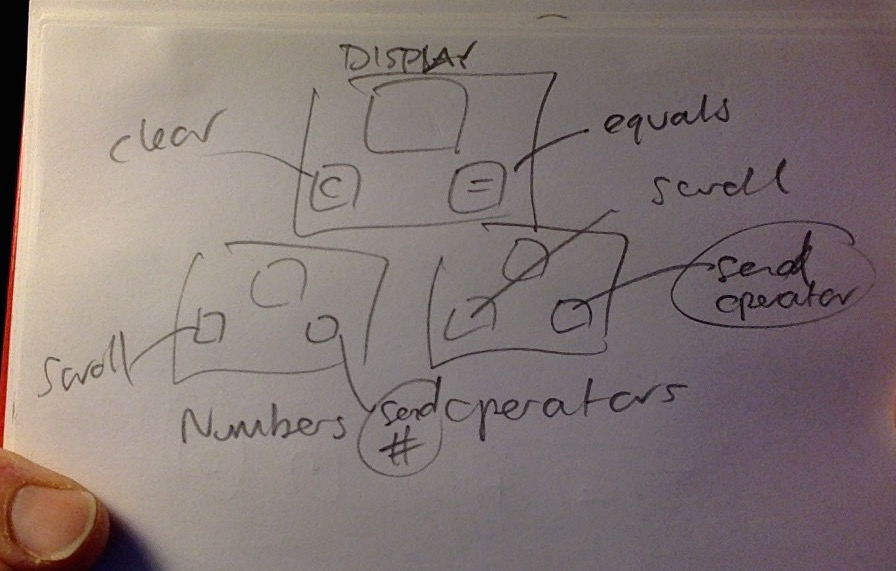
Here’s how it works. The top micro:bit is the display which shows entered numbers and operators. The left button A is the clear button. The right button B is the ‘=’ button (equals, calculate, evaluate, work it out!)

Underneath it are two more micro:bits. The one on the left does numbers, the one on the right sends operators. Using the A button, you scroll through each possible number (0 through to 9 and . for decimal point) and operators (+,-,/ and *). When you found have the number you want to send, you press button B to transmit it over radio to the display. Press button B on the display micro:bit to calculate the result – if it’s longer than a single digit it scrolls, but you can press button B again if you missed it.

I had to think quite hard about how a calculator’s UI works and how it knows when to perform the actual calculation. My solution doesn’t emulate a real calculator – it doesn’t have a keypad for one thing. It builds up a string of numbers and operations until you press the = button, then it evaluates the string. If there’s no operator, pressing = does nothing. If there is no second number, it does nothing. If there is an operator in the string and 2 numbers it will perform the calculation.

I’m sure the code can be made more elegant but I’m quite pleased with it. It copes with decimal numbers, if you don’t have an operator or a second number it doesn’t error but waits for you to add them. Perhaps you could add more mathematical functions? Error handling for more than 2 numbers or division by zero?

Here’s a short video showing how it works in practice:

This is the program you flash to the number encoder:

from microbit import *
import radio
radio.on()
numbers = ["0","1","2","3","4","5","6","7","8","9","."]
x = 0

while True:
    if button_a.was_pressed():
        x += 1
        if x > 10:
            x = 0
        display.show(numbers[x])
    if button_b.was_pressed():
        radio.send(numbers[x])

This is the program you flash to the operator encoder:

from microbit import *
import radio
radio.on()
operators = ["+","-","/","*"]

x = 0

while True:
    if button_a.was_pressed():
        x += 1
        if x > 3:
            x = 0
        display.show(operators[x])
    if button_b.was_pressed():
        radio.send(operators[x])

And finally, this is the program you flash to the display micro:bit:

from microbit import *
import radio
radio.on()
calc_string = ""

def displayResult():
    result_string = str(result)
    if result_string[-2:] == ".0":    # strip trailing .0 from whole numbers
        result_string = result_string[:-2]
    if len(result_string) == 1:
        display.show(result_string)   # show single digits
    else:
        display.scroll(result_string) # scroll longer numbers

while True:
    incoming = radio.receive()
    if incoming:
        display.show(incoming)
        calc_string = calc_string + incoming
    if button_a.was_pressed():   # clear button
        calc_string = ""
        a = None
        b = None    # destroy b so you can test it exists later
        display.show("0")
    if button_b.was_pressed():   # equals button
        if "+" in calc_string or "-" in calc_string or "/" in calc_string or "*" in calc_string:
            z = 0
            for char in calc_string:
                if char in "+-/*":
                    operator = char
                    a = calc_string[:z]   # a is everthything before the operator
                    b = calc_string[z+1:] # b is everything after the operator
                z += 1
            if operator == "+" and b: # check 2nd number exists before displaying result
                result = float(a) + float(b)
                displayResult()
            if operator == "-" and b:
                result = float(a) - float(b)
                displayResult()
            if operator == "*" and b:
                result = float(a) * float(b)
                displayResult()
            if operator == "/" and b:
                result = float(a) / float(b)
                displayResult()
        else:
            print("no operator")
Posted in computers, microbit | Tagged , , | Leave a comment

Monk Makes Sensor Board for Microbit with Mu plotter

The Mu Python editor’s new plotter function continues to delight me. I connected a Monk Makes Sensor Board to a micro:bit and wrote a few lines of Python to see whether I could get some live data readings from its three sensors: sound, heat and light. And by golly, it works!

Here’s the Python program I used. I opened the REPL and plotter in Mu and then flashed this code onto a micro:bit with the sound, temperature and light sensors attached to pins 0, 1 and 2 respectively:

from microbit import *

while True:
    sleep(20)
    pin0reading = pin0.read_analog() # sound - blue line
    pin1reading = pin1.read_analog() # temperature - green line
    pin2reading = pin2.read_analog() # light - orange line
    print((pin0reading, ((pin1reading-400)*5), pin2reading))

I messed around with the temperature reading a bit to get it to scale, you could probably do a better job. The video below shows the board in action with live-plotting. It’s only (at the time of writing) £7.20 from CPC, a real bargain for three sensors in one easy-to-use board.

You can download the beta version of Mu 1.0 for your OS of choice using the links at the foot of this Github page.

Posted in computers, microbit | Tagged , , | 2 Comments

Plotting live microbit sensor data in Mu

I very much enjoyed watching the video of Nicholas Tollervey’s visit to Adafruit recently, it’s well worth a look. One of the highlights for me was a new feature (currently in beta versions of Mu 1.0) that allows live plotting of numerical data printed to the REPL (command line) by Python code on the microbit.

Apparently the live plotting idea came from Adafruit’s founder Limor Fried, and it is amazing. With just 4 lines of Python you can get live sensor reading – the accelerometer is the obvious place to start – from a microbit and display them in graph form just with a few clicks. No extra Python libraries needed, just 4 lines of code. It’s quick and easy enough to be deliverable even in a short school lesson.

I decided this would be even neater if you could untether a microbit, so here’s a project where I send accelerometer data as a string wirelessly from one microbit to another plugged into a computer running Mu. It could be great for physics experiments.

I put this code on a transmitting microbit, and attached a battery pack to it with a rubber band. You can thrown this microbit around the room, attach it to a vehicle/rocket/dog:

from microbit import *
import radio
radio.on()

while True:
    sleep(20)
    radio.send(str(accelerometer.get_values()))

I then pressed the REPL button, flashed this program to a microbit that remains tethered to the computer and clicked on the plotter button to see live accelerometer data being received from the battery-operated microbit:

from microbit import *
import radio
radio.on()

while True:
    message = radio.receive()
    sleep(20)
    print(message)

You can see a demonstration of this in my exciting YouTube video below:

You can find instructions for installing Mu on the Adafruit web site (I used the Linux ones for my old Mac as it has an old version of OS X) or you can download the latest versions of Mu from Github by following the appropriate download links at the foot of this page.

Other plotter ideas

Since tweeting about this project, Paul Knighton has been very busy. He has connected a pulse sensor to a micro:bit and is working on code to make a heart-rate monitor! He’s also connected a sound-level detector, but I love the pulse idea – so many possible cross-curricular links here:

Update – Nov 2020

Since I wrote this blog post a lot has changed – Microsoft MakeCode now supports data logging, have a look at this project on the Micro:bit Educational Foundation website.

And this write-up of Python data logging with Mu includes a video I made on the subject:

Posted in computers, microbit | Tagged , , | 3 Comments

Raspberry Pi Cartwall

piCartWall

A Raspberry Pi radio / theatre cartwall to play jingles or sound FX instantly using a touch screen.

What it does

Cartwalls are used in radio studios to play in jingles at the touch of a button. This is designed to do the same on a bog-standard Raspberry Pi connected to a touch screen. It does not require ANY other software or libraries to be installed, all you need is a Raspberry Pi with Raspbian installed, some WAV files in your Pi’s defualt Music folder – and a touch screen for full effect. It could be used in student, hospital or community radio or for playing sound effects in a play.

How to set it up

It’s very easy to set up. First download picartwall.py from my Github page.

Place some WAV files in /home/pi/Music/ on your Raspberry Pi, up to 14. Any other files, including MP3s, will be ignored. Run picartwall.py and it will assign a button to the first 14 WAV files it finds in alphanumeric order. The layout is optimised for a 800 x 480 pixel display like the Pimoroni HyperPixel. If you want to use a bigger display you could rejig the code. It only supports WAV files because I wanted it to work on a Raspberry Pi out of the box with no internet access required and no need to install any new Python libraries or other audio players. It uses the aplay command as this seems to work much faster than omxplayer which does support MP3 files but has an unacceptable lag between pressing the button and sound coming out.

How to use it

Press a button. Noise comes out. It uses the default audio output which you can select in the normal way. You could use a USB DAC for better sound quality. There are buttons:

  • One shows the Raspberry Pi’s IP address, which could be useful if you’re trying to manage it remotely by SSH or VNC.
  • Another button shuts the whole system down pretty immediately – you’d probably want to disable this in a broadcast environment!
  • The next button just closes the app so you can get to the normal PIXEL desktop.
  • There is a spare button that I haven’t found a use for yet. Perhaps I should add some volume control buttons. I did think about GTS (pips) or 1kHz tone but these would require additional audio files.

To do

  • The clock is a cut-and-shunt job from another project and it stops when audio plays. It should be integrated / threaded somehow.
  • Better indication of when audio is playing e.g. button goes red. This has defeated me thus far.
  • Some indication of duration / play progress / out-time. All a bit hard.
  • Meaningful wordy button labels… from file name? User-configurable?


Why ‘cart’?

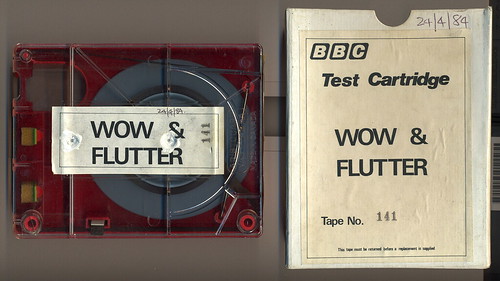
Jingles, stings, sig tunes – and even news clips – used to be played on the radio from pleasingly big chunky plastic cartridges (like the 8-track car stereo cartridges of the 1970s) containing loops of magnetic tape. I still occasionally have nightmares about trying to spool long carts back to the beginning having fired one off by accident.

wow and flutter

Have we got a video?

Posted in computers, hardware, radio, Raspberry Pi | Tagged , , , | 5 Comments