Surreal random micro:bit story printer

This is a slight twist on my original Little Box of Poems I originally made back in 2012. It mashes that up with Papert-inspired random poetry to create surreal haiku-like poems or story starters.

This project uses a BBC micro:bit and a serial thermal printer. Wiring it up is very simple: connect the black data wire on the printer to GND on the micro:bit, and the printer’s yellow data RX wire to pin 8 on the micro:bit (you could use another pin, I just happened to use pin 8). The printer needs 5 volts to power it, so it needs a separate power supply. Luckily USB sockets give 5v, and thanks to this tutorial from the awesome Tanya Fish I chopped up an old unwanted USB lead to make my own source of printer power.

How to wire a serial printer to a micro:bit

Parts list:

  • micro:bit with power source, battery or USB.
  • Some way of connecting pins – edge connector and jumper wires or crocodile clip leads.
  • A serial thermal till-roll printer like this one and some thermal paper.
  • A 5v power source for the printer – an old USB lead chopped up and a USB power source will do nicely.
  • Python program below and here – you can flash it onto the micro:bit using the online micro:bit Python editor or Mu.

The Python program is in two parts – the first part is all the functions to send control codes for different styles of printing – most of these aren’t used in this project but you might have fun playing with them – you can also print different kinds of barcode if you look here.

The second part creates lists of different kinds of words: animal / people nouns, verbs, adverbs, prepositions, adjectives and place nouns. Each time you press button A, it picks a random word from each category and prints them out. You could use this as a story starter, use it as a passphrase or just enjoy the surreal haiku-like poems. Add your own words. How long a story can you get a machine to write? Let me know what you do with this idea, using a printer, 2-line LCD or just the built-in LED display.

Download Python program here.


import microbit
import random
microbit.uart.init(baudrate=19200, bits=8, parity=None, stop=1, tx=microbit.pin8, rx=None)

# Print lines of text in buffer
def thermal_print_ln(msg):
    microbit.uart.write(msg+"\n")

# Send text but don't print - you need to send a
# newline (\n) character to empty buffer & print.
# This enables mixed print modes on same line.
def thermal_print(msg):
    microbit.uart.write(msg)

def doubleHeightOn():
    microbit.uart.write("\x1B\x21\x10") 

def doubleHeightOff():
    global print_mode
    microbit.uart.write("\x1B\x21\x00") 

def smallFontOn():
    microbit.uart.write("\x1B\x21\x01") 

def smallFontOff():
    microbit.uart.write("\x1B\x21\x00") 

def boldOn():
    microbit.uart.write("\x1B\x45\x01") 

def boldOff():
    microbit.uart.write("\x1B\x45\x00") 

def wideOn():
    microbit.uart.write("\x1B\x0E") 

def wideOff():
    microbit.uart.write("\x1B\x14") 

def inverseOn():
    microbit.uart.write("\x1B\x21\x02") 

def inverseOff():
    microbit.uart.write("\x1B\x21\x00") 

def upsideDownOn():
    microbit.uart.write("\x1B\x7B\x01") 

def upsideDownOff():
    microbit.uart.write("\x1B\x7B\x00") 

def underlineOn():
    microbit.uart.write("\x1B\x2D\x02") 

def underlineOff():
    microbit.uart.write("\x1B\x2D\x00") 

def largeFontOn():
    microbit.uart.write("\x1D\x21\x11") 

def largeFontOff():
    microbit.uart.write("\x1D\x21\x00") 

def leftAlign():
    microbit.uart.write("\x1B\x61\x00")

def centreAlign():
    microbit.uart.write("\x1B\x61\x01")

def rightAlign():
    microbit.uart.write("\x1B\x61\x02")

# prints test page
def printerTest():
    microbit.uart.write("\x12\x54")

# resets the printer to default values
def printerReset():
    microbit.uart.write("\x1B\x40")

# press button A to activate demo
# increase printing temperature and time
microbit.uart.write("\x1B\x37\x07\xFF\xFF")

noun_list = ["fish ", "dog ", "cat ", "girl ", "boy ", "duck ", "teacher ", "snake ", "kitten ", "puppy ", "bird ", "bee ", "spider ", "ant "]

verb_list = ["walks ", "runs ", "eats ", "sings ", "smiles ", "waves ", "swims ", "talks ", "stands ", "looks ", "nods ", "sleeps ", "flies ", "floats "]

adverb_list = ["quickly ", "slowly ", "happily ", "sadly ", "gracefully ", "hungrily ", "well ", "badly ", "bravely ", "lazily ", "joyfully ", "crossly ", "loudly ", "quietly "]

preposition_list = ["under ", "over ", "beneath ", "through ", "into ", "above "]

adjective_list = ["dark ", "spooky ", "lonely ", "ancient "]

place_list = ["sky ", "pond ", "forest ", "ocean ", "lake ", "city ", "village "]

while True:
    if microbit.button_a.was_pressed():
        poem = noun_list[random.randint(0, len(noun_list)-1)] \
        + verb_list[random.randint(0, len(verb_list)-1)] \
        + adverb_list[random.randint(0, len(adverb_list)-1)] \
        + preposition_list[random.randint(0, len(preposition_list)-1)] \
        + "the " + adjective_list[random.randint(0, len(adjective_list)-1)] \
        + place_list[random.randint(0, len(place_list)-1)]
        thermal_print_ln("micro:bit poem or story")
        thermal_print_ln("specially made for you!")
        largeFontOn()
        thermal_print_ln(noun_list[random.randint(0, len(noun_list)-1)] + verb_list[random.randint(0, len(verb_list)-1)])
        thermal_print_ln(adverb_list[random.randint(0, len(adverb_list)-1)] + preposition_list[random.randint(0, len(preposition_list)-1)])
        thermal_print_ln('the ' + place_list[random.randint(0, len(place_list)-1)])
        thermal_print_ln(" ")
        thermal_print_ln(" ")
        largeFontOff()
    microbit.sleep(300)

p.s. I’ve tried printing bitmaps from the micro:bit with no luck, but this article may offer a clue.

Posted in microbit | Tagged , , | 3 Comments

Add a 16×2 LCD display to a micro:bit

I had one of these cheap 16 x 2 LCD display modules hanging around that I bought to go with some Arduino or Raspberry Pi project that I never finished – in fact I couldn’t get the thing to work at all.

So I’m delighted to have got it working with a micro:bit! Here’s what I used:

  • 16 x 2 LCD module
  • medium-large breadboard
  • a whole heap of jumper wires, some male-male, some male-female
  • a BBC micro:bit
  • a Kitronik micro:bit breakout board
  • a 5V power supply
  • a 1KΩ resistor

I used this project as the basis, which includes a Python program to drive the display (registration required). You don’t need to download MicroPython to program a micro:bit, you can use the online editor – the beta Python editor will even allow you to flash programs straight to your micro:bit over webUSB if you’re using Chrome.

The wiring diagram isn’t very clear on that website, so here’s a list of all the pins on the LCD display and what you need to connect them to:

LCD pin LCD function connect to
1 GND – 0v GND on micro:bit & -ve 5v
2 5v in +ve 5v
3 Contrast GND via a resistor
4 Register select micro:bit pin 0
5 Read/write GND
6 Enable micro:bit pin 1
7 Data DB0 not connected
8 Data DB1 not connected
9 Data DB2 not connected
10 Data DB3 not connected
11 Data DB4 micro:bit pin 8
12 Data DB5 micro:bit pin 12
13 Data DB6 micro:bit pin 2
14 Data DB7 micro:bit pin 13
15 Backlight +ve +ve 5v
16 Backlight GND -ve 5v

I tried driving the whole thing off the 3v supply on the micro:bit, but it didn’t work – I think you really do need an external 5v power supply as there has to be a bigger difference in voltage between the power in and the contrast pin (although perhaps someone can do something clever with this information?) I didn’t have one to hand, so I chopped an old USB lead in half, and stripped the wires back to get 5v off the red (positive) and black (negative) wires, which I connected to the +ve and -ve (GND) rails on my breadboard.

Normally you’d use a potentiometer to adjust the contrast, but I just used a 1KΩ resistor instead.

You’ll see in the video that I added a little switch as well to turn the backlight on and off and you’ll see below I found an old volume control or something which I’ve pressed into service as a contrast knob on my maximum / minimum temperature display:

Here’s the Python program that does the temperature display (not including the LCD driver code):

InitDisplay()

def showTemp():
    clear()
    showText('Current temp: ' + str(temperature()) + 'C')
    setCursor(0,1)
    showText('Max: ' + str(maxTemp) + '  Min: ' + str(minTemp))

currentTemp = temperature()
maxTemp = currentTemp
minTemp = currentTemp
showTemp()

while True:
    if currentTemp != temperature():
        currentTemp = temperature()
        if currentTemp > maxTemp:
            maxTemp = currentTemp
        if currentTemp < minTemp:
            minTemp = currentTemp
        showTemp()
    sleep(1000)

It would be nice if someone made an adaptor to allow you to plug one of these common LCD modules straight into a micro:bit, with a USB input for 5v display power, maybe back-powering the micro:bit with 3v?

Now what else shall I do with it? Show received radio messages from other micro:bits, make another Little Box of Poems or other random fact dispenser?

Posted in microbit | Tagged , , | 9 Comments

micro:bit binary quiz

Here’s a simple micro:bit project to help you practice converting between binary and decimal (denary / base 10) numbers up to 31.

Binary place values
16 8 4 2 1
1 0 1 0 1

In this example, 10101 in binary in decimal is 16 + 4 + 1 = 21.

Press button A and your micro:bit shows a random decimal number between 1 and 31.

Press button B and it shows the binary equivalent, represented on the top row of LEDs as lit for 1 and dark for 0.

You can use this to challenge yourself – press B to see the dots and work out the decimal equivalent, press A to see if you’re right. Or press A to get the decimal number, work out what the 0s and 1s should be, and press B to see if you got it correct.

Shake the micro:bit to generate a new random number.

It uses a version of the ‘divide by 2′ algorithm for converting base 10 (decimal) numbers to binary:
1 – divide number by 2
2 – store the remainder in an array
3 – repeat steps 1 and 2 until number = 0
4 – print the array in reverse order

View the MakeCode project here: https://makecode.microbit.org/_FMJb1PR6o6LR

Posted in computers, microbit | Tagged , | Leave a comment

Teaching logic gates with physical computing

I found teaching logic gates one of the trickier parts of the secondary Computer Science curriculum: they’re abstract, dry… not much fun. Year 9 in a girls’ school. Tough crowd. To counter this, I tried to make them a bit more tangible. I raided the Physics (or was it DT?) department for these rather splendid, and tragically no longer manufactured, modular lightbulbs and switches to make AND and OR gates we could wire up in class:

You can make a NOT gate with a relay, but beyond that it gets tricker. There are modular logic gates you can buy, but they’re very expensive, so I switched to using the marvellous logic.ly website to get my pupils to wire logic gates together to make half adders and full adders – the building blocks of everything from calculators to phones to computers. With my year 9s, logic gates made more sense when we could use them to add up:

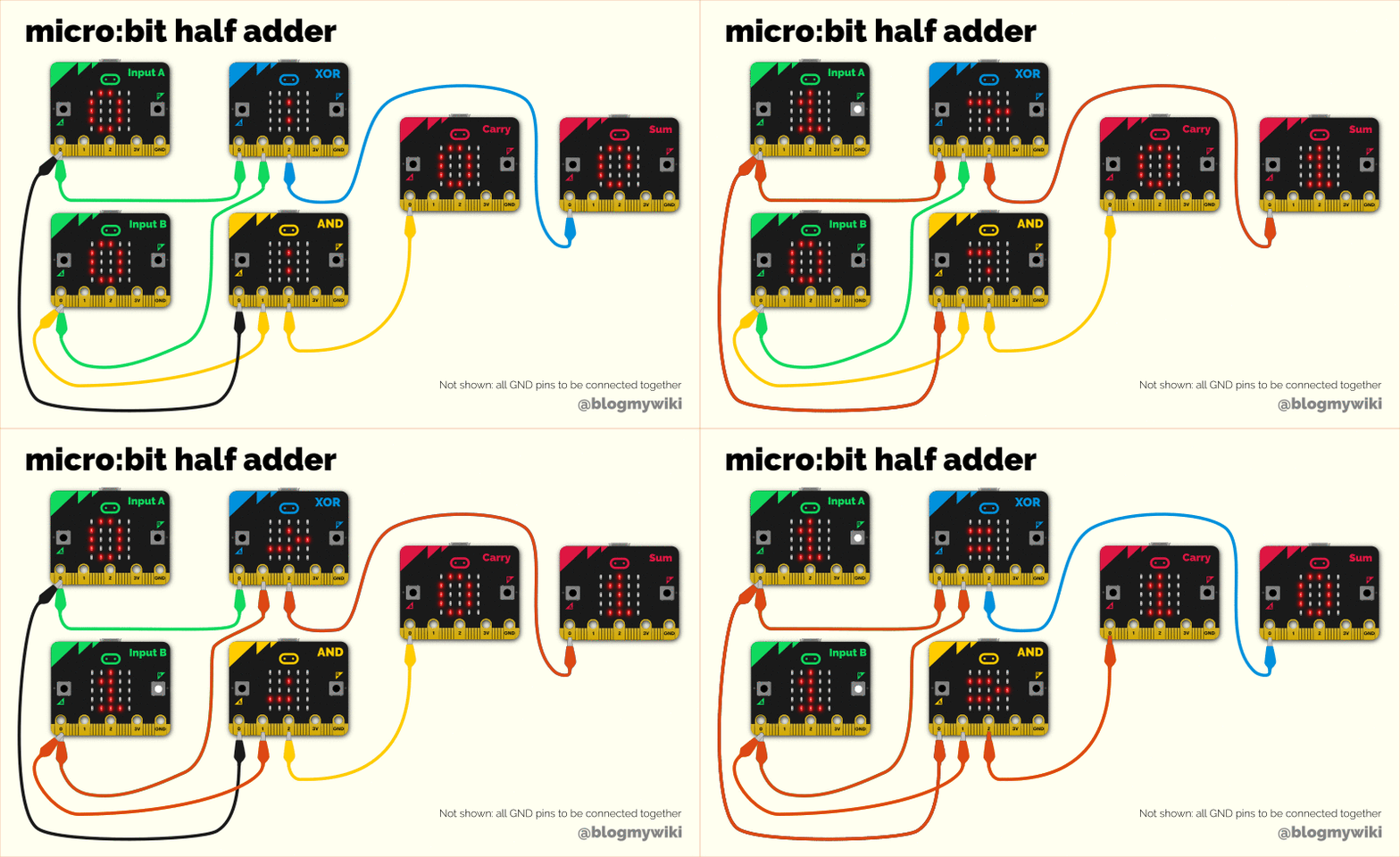
Here you can see two switches used as inputs to the half adder. The lightbulbs show the output. With both switches off (0 + 0) you get no lights: 00 in binary. With either input switch on (1 + 0 or 0 + 1) you get 01 binary out. Turn both switches on, however, 1 + 1 = 10, which in binary is true as 10 is how you write the number 2 in binary.

More recently I made some simple MakeCode programs to turn micro:bits into physical logic gates so you can make a half adder. You’ll need 6 micro:bits and a heap of crocodile clip or banana plug leads for this, plus battery packs – though you could get pairs of pupils to program each element, or write the programs themselves from scratch.

There are 4 kinds of device:

input switches which send a digital output 0 or 1. Press button A for 0, button B for 1, which sends a digital 1 from the pin 0 output.

AND gates send a digital 1 output on pin 2 if input pins 0 and 1 are high,

XOR gates send an output on pin 2 if either inputs on pins 0 or 1 are high, but not both.

output displays show 0 or 1 depending on whether they receive a digital input on pin 0.

You do also have to join all the GND pins together to complete the electrical circuit, certainly if you’re using batteries – you can daisy chain them together. I didn’t show that on the diagram above for clarity. (If you’re powering them all off the same USB supply you may get away without daisy-chaining the GND pins together for reasons not unadjacent to witchcraft).

Here’s the code for the input switch:

The XOR gate:

The AND gate:

The output display:

…and here’s a video showing them in use, albeit messily on my desk:

And yes, the irony of using a micro:bit – which contains thousands and thousands of logic gates – to emulate a single logic gate is not lost on me. But you may have a class set of micro:bits that could help make logic gates more tangible. You could make other logic gates to get a full set. Could you build a full adder? A bigger calculator? Something else?

Posted in computers, education, ICT, microbit | Tagged , , | Leave a comment

micro:bit music experiments

I’ve made a few simple projects to turn a BBC micro:bit into (sort of) musical instruments.

First, I made a simple arpeggiator. The micro:bit is, of course, only capable of playing 1 note at a time, but take 3 notes from a chord and break them apart and you get something that sounds… like music:

You can try this for yourself even if you don’t have a micro:bit, using the simulator: https://makecode.microbit.org/_XRogJF6kzHWE


Next I tried to make a theremin-type instrument, controlling the pitch of the tone being played by changing the physical pitch (tilt) of the micro:bit:

Here’s the code that makes it work:


And finally, I used the micro:bit’s magnetometer: the stronger the magnetic field detected, the higher the pitch of the sound:

You can’t really use the magnetometer in the simulator, but here’s the code for the project – only the ‘forever’ block is important, the buttons were used when testing it.

If you make some noise with your micro:bit, I’d like to know about it!

Posted in computers, music | Tagged , | Leave a comment