Simple Python game with micro:bit OLED display

I’ve managed to get a simple game working on my micro:bit OLED display, and I ditched the breadboard at the same time, meaning that it should be possible to build this into a small case. I may even add some external buttons and perhaps some sound?

Here’s what I used:

I added the extra Python modules using the new micro:bit Python editor’s feature to add extra files to your projects. It supports WebUSB, so using a recent version of Chrome you can flash Python projects straight onto your micro:bit without having to drag and drop HEX files.

Connecting the OLED is easy, especially if you have the well-labelled pin:bit – connect micro:bit 3v to VCC on the display, GND to GND, micro:bit pin 19 SCL (serial clock) to the display’s SCL pin and micro:bit pin 20 (SDA / serial data) to the SDA pin on the display.

The program works by creating ‘stamps’ – like crude sprites – for 3 hazards (a duck, a ghost and a tortoise), all using graphics from the micro:bit’s own built-in 5×5 icons. This is a neat touch that avoids having to create your own bitmap graphics.

You move left and right using A and B buttons, and press A+B together to move forward – you can’t move backwards! When you reach the top you level up, complete 10 levels to win.

There was no function I could find in the Python modules to invert the screen, which is possible if you know what control codes to send, so I added the flash() function which will flash the screen any number of times by making the screen negative then positive quickly in succession. I use this effect when you level up, win or lose.

The levels don’t get harder – it’s running as fast as it can, so I can’t speed it up. To make it more challenging I might add more hazards or slow the player down in some way. Adding sound would also be a logical next step, along with building into a small case, perhaps with some external buttons.

My main Python game program is here, and you can download the whole project HEX file here.

from ssd1306 import initialize, clear_oled, command
from ssd1306_stamp import draw_stamp
from ssd1306_img import create_stamp
from ssd1306_text import add_text
from microbit import sleep, display as LED, Image, button_a as A, button_b as B

def flash(times):
    for i in range(times):
        command([0xa7])
        sleep(300)
        command([0xa6])
        sleep(300)

def move_stamp(x1, y1, x2, y2, stmp):
  draw_stamp(x1, y1, stmp, 0, 0)
  draw_stamp(x2, y2, stmp, 1, 1)

alive = True
level = 0
ghostx, ghosty = 3, 10
ghostDirection = 1
tortoiseX, tortoiseY = 40, 20
tortoiseDirection = -1
duckX, duckY = 20, 5
duckDirection = 1
playerX, playerY = 32, 27

LED.show(level)
initialize()
clear_oled()
ghost = create_stamp(Image.GHOST)
tortoise = create_stamp(Image.TORTOISE)
duck = create_stamp(Image.DUCK)
player = create_stamp(Image.TRIANGLE)
draw_stamp(ghostx, ghosty, ghost, 1)
draw_stamp(tortoiseX, tortoiseY, tortoise, 1)
draw_stamp(duckX, duckY, duck, 1)
draw_stamp(playerX, playerY, player, 1)

while alive:
    oldGhostX = ghostx
    ghostx += ghostDirection
    if ghostx > 58:
        ghostDirection = -1
    if ghostx < 3:
        ghostDirection = 1
    move_stamp(oldGhostX, ghosty, ghostx, ghosty, ghost)

    oldTortoiseX = tortoiseX
    tortoiseX += tortoiseDirection
    if tortoiseX > 58:
        tortoiseDirection = -1
    if tortoiseX < 3:
        tortoiseDirection = 1
    move_stamp(oldTortoiseX, tortoiseY, tortoiseX, tortoiseY, tortoise)

    oldDuckX = duckX
    duckX += duckDirection
    if duckX > 58:
        duckDirection = -1
    if duckX < 3:
        duckDirection = 1
    move_stamp(oldDuckX, duckY, duckX, duckY, duck)

    oldPlayerX = playerX
    playerX = playerX - 1 if (A.is_pressed() and playerX > 0) else playerX
    playerX = playerX + 1 if (B.is_pressed() and playerX < 58) else playerX
    oldPlayerY = playerY
    playerY = playerY - 1 if (A.is_pressed() and B.is_pressed() and playerY > 0) else playerY

    if oldPlayerX != playerX or oldPlayerY != playerY:
        move_stamp(oldPlayerX, oldPlayerY, playerX, playerY, player)

# have we reached the top?
    if playerY == 1:
        level = level + 1
        LED.show(level)
        flash(1)
        draw_stamp(playerX, playerY, player, 0)
        playerX, playerY = 32, 27
        draw_stamp(playerX, playerY, player, 1)

# have we won?
    if level == 10:
        alive = False

# have we hit anything?
    if ghostx-3 <= playerX <= ghostx+3 and ghosty-3 <= playerY <= ghosty+3 \
    or tortoiseX-3 <= playerX <= tortoiseX+3 and tortoiseY-3 <= playerY <= tortoiseY+3 \
    or duckX-3 <= playerX <= duckX+3 and duckY-3 <= playerY <= duckY+3:
        alive = False

if level == 10:
    LED.show(Image.HAPPY)
    clear_oled()
    add_text(3, 1, 'You win!')
    flash(5)
else:
    LED.show(Image.SKULL)
    clear_oled()
    add_text(2, 1, 'Game over!')
    flash(5)

Beta Python editor update

Why not try the new micro:bit Python editor (in Beta as at 22 June 2022) with this code and see how you like it? Download the HEX file from further up this page and drag and drop it onto the editor to load all the files:
screenshot of Beta micro:bit Python editor with this game loaded

Posted in computers, microbit | Tagged , , | 4 Comments

micro:bit OLED display

I love add-on displays for micro:bits, and after putting a cheap colour LCD through its paces, I’ve been experimenting with a tiny 128×64 pixel OLED screen.

OLED displays are great because they are very sharp and have insanely high contrast – which is why OLED TVs are so good. Instead of blocking out a backlight with filters, like LCDs, OLEDs have a tiny LED as each pixel which either emits light or doesn’t – so black really is black.

This display cost just over £5. It’s an SSD1306, widely-used in Arduino and other hobby projects, which means drivers are available for it. Unlike the colour LCD I used last week, this has a MakeCode extension that works with the current version of MakeCode.

MakeCode

Once you add the approved MakeCode extension, you connect your display using just 4 wires: GND on he display to micro:bit GND, VCC to 3v, SCL (serial clock) to 19 and SDA (serial data) to micro:bit pin 20. These last two are the I2C pins on the micro:bit, so you’ll need a special edge-connector / breakout board to get at them. Adafruit are about to release one in the UK via PiHut, the Kitronik one requires you to solder pins to get at I2C, so I used a Pimoroni pin:bit, 4 jumper wires and a breadboard.

The MakeCode extensions are very easy to use, though in normal mode they double up the pixels, giving an effective resolution of just 64 x 32. I guess this is to make the tiny text more readable – it uses the micro:bit’s 5×5 font with no spacing, so it’s not the easiest text to read but you can still get way more information on the display than you can with a micro:bit alone. The ‘non-zoom’ mode seems to show text at 10×5 true pixels, which looks horrible, so I didn’t use it. This is a pity as being able to access every tiny pixel would be pretty neat.

I made a max-min thermometer that plots temperature readings in real time, shows the current temperature and gives high and low readings at the press of a button.

The display seems to update faster than the colour LCD did, and when you write numbers to the display, it over-writes the whole 5×5 grid, meaning you don’t have to blank spaces by drawing rectangles as I had to do with the LCD.

There’s a block for inverting the screen as well, which you can use to make some seizure-inducing effects, and there are blocks to draw lines and rectangles (but not circles).

It was when I tried creating a game I found a major omission from this MakeCode OLED extension: there’s no way of querying the state of a given pixel. You need this to know, for example, if you’ve hit something.

There’s another MakeCode OLED extension from Elecfreaks for their Tinkercademy board and kit, which I discovered works fine without their board and just an SSD1306 OLED connected straight to the micro:bit’s i2c pins. It’s also very limited, just allowing the display of text, numbers, lines, rectangles and a progress bar that I can’t get to work, but it does use a better font, tall and narrow (around 5×7 or 5×8 pixels with spacing) but much more readable than porting the micro:bit’s own 5×5 pixel font. It seems to double each row, even when drawing graphics, so I think the effective resolution with this extension is 128×16 pixels:

Conclusion: this MakeCode OLED driver is great for displaying information as text, numbers and simple graphics, but it’s probably not much good for graphical games.

Enter the Python

That MakeCode driver is actually based on a Python one (which is, I think, itself based on a C++ one for the Arduino). The Python library for the SSD1306 OLED display is obviously a bit trickier to use, but really much more powerful. It actually allows you to query the state of a given pixel, meaning that graphical games become feasible. Indeed, a few games are provided in the Github repo. I tried the Asteroid one and, once I’d fixed a bug, it worked!

These Python programs require you to upload multiple Python files (and bitmaps) you your micro:bit, but the good news is that this is simple using the new version of the online Python editor. Click on Load/save, then under Project Files click on ‘Show Files’ and add as many files as you need for your project, then flash to your micro:bit (direct using WebUSB if you have a recent Chrome-based browser).

I had a go at uploading my own images too – after a lot of failure, I found this the best tool for the job, but I had to invert the images so they appeared negative and use vertical draw mode. You paste the HEX numbers into the bitmap_converter.py program to generate a binary file you can upload to reference in your Python programs.

Whatever I do next with this OLED display I will probably do in Python. Improving the MakeCode extension for gaming is a bit tricky because I suspect the Python driver holds the entire image display contents in an array so it can query that. I think MakeCode would need to query the device itself and I’m not sure if that’s possible. I also had a lot of fun working out how the MakeCode driver stored the micro:bit font, and eventually worked out it was using a very weird format indeed – but I did crack it – so adding better fonts may be an option down the line.

And here’s a bit of fun – what if Susan Kare had designed a micro:bit GUI in 1984 for the Macintosh?

Since writing this I’ve discovered this article which covers very similar territory, and has some nice wiring diagrams.

Posted in computers, microbit | Tagged , , , | 2 Comments

LCD colour display for micro:bit

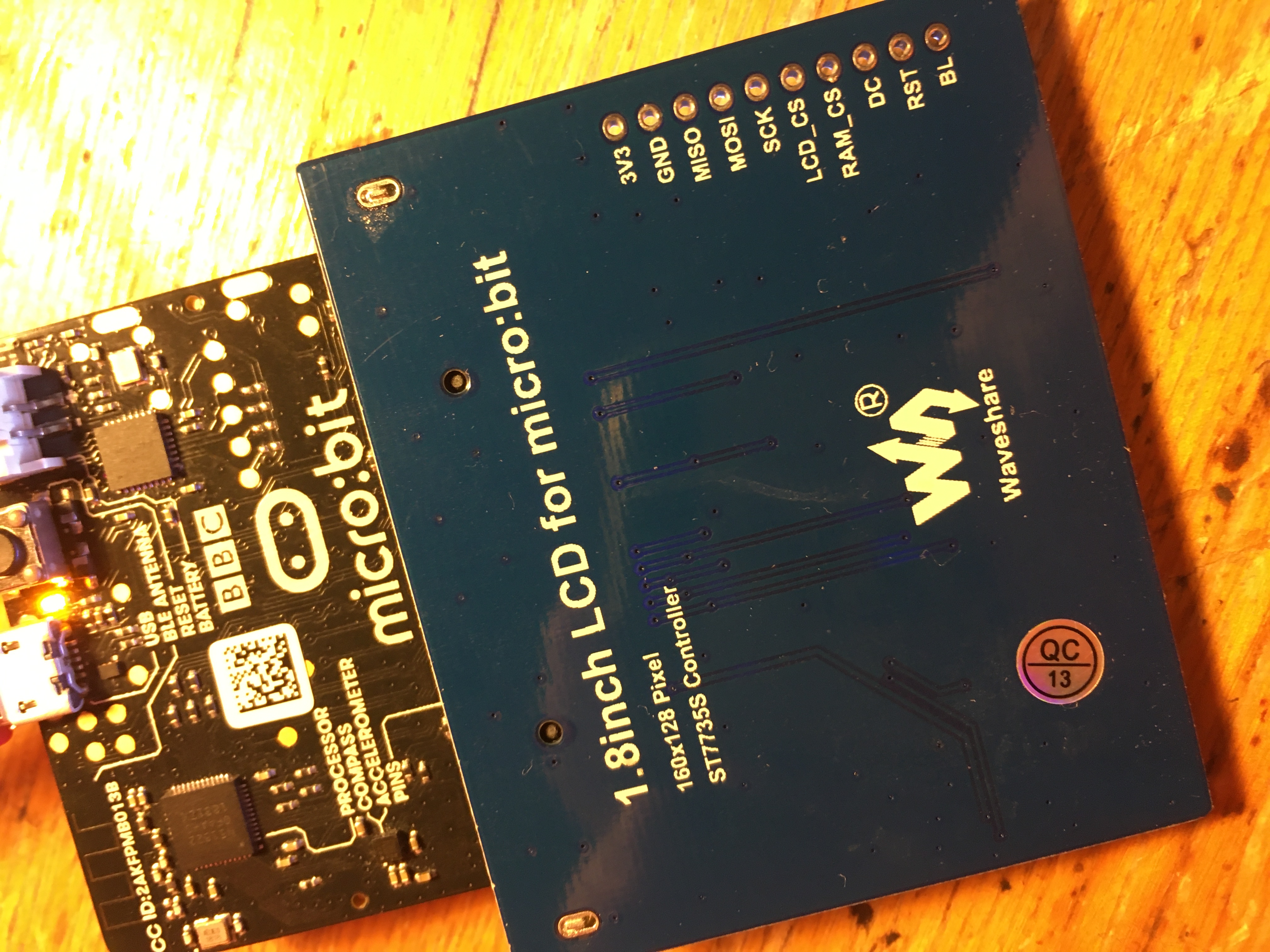
I love displays so I couldn’t resist this £10 Waveshare colour LCD that plugs straight into the micro:bit’s edge connector. It’s small, 1.8 inches across, and with a resolution of 160×128 pixels, but just the right size to match a micro:bit.

back of LCD display

Getting it working was a bit of a challenge, but eventually I found what I needed to make a thermometer that keeps track of maximum and minimum temperatures and plots them in real time on a graph moving across the screen.

To get it working you have to use the old MakeCode editor: https://makecode.microbit.org/v0/

You also need to add the driver by clicking on the cog and then ‘Add package’, pasting in this URL: https://github.com/waveshare/WSLCD1in8

The documentation, once I’d found it, isn’t brilliant, but there’s enough to get you going.

What I really like about this device and its driver is that it doesn’t entirely protect you from the low-level stuff that goes on to make LCD displays work, and because of this you may learn more than you might just working with normal graphics on a computer-based programming language. The fact that we’re programming a micro controller and tiny LCD display means we get a bit deeper into the hardware-software interface, closer to the metal, but not so close as to be too scary.

For example, you have to begin by initialising the display, clearing and allocating memory for your graphics. If you draw a line, circle, box or text on the display, nothing happens. You have to update the display. You can do this with the ‘send display data’ block, but this updates the whole display, which is slow. Better – and much quicker – only to update the part of the display that’s changed, and you can do that with the ‘Show Windows display data’ block, specifying the co-ordinates of the area you want to refresh. In the thermometer program below, I could speed the program up by only refreshing the numbers when they change, for example, or refreshing smaller parts of the display. This is a nice example of the kinds of considerations you have to make when working at a low level with meagre resources.

I also learned something new about how colours are displayed on LCDs. The MakeCode extension gives you a few pre-defined names colours, but I was curious to know more and noticed that the HEX colour codes in the driver were really odd. I expected 3 values, 1 red, 1 green, 1 blue. But instead there were four HEX numbers. White was FFFF, black 0000 which is what you’d expect, but red is F81F, green 07E0 (2016 in decimal, see code below!) and blue 001F. What’s going on?

It turns out that TFT LCD displays often use something called RGB565 16 Bit colour coding. This defines colours in an odd scheme where the red and blue channels get 5 bits each, and the green channel gets 6 bits:

rgb565 colour code

Why give the green channel an extra bit? Because the human eye is more sensitive to green light (and shades of green), and so it makes sense to use the extra bit where it can do more good. I found this colour picker to help select 16 bit RGB565 colours.

This LCD display also brings its connections out to unsoldered holes where you could add a header to connect to a breadboard and another micro-controller such as an Arduino.

What shall I do with this next? Some sort of game seems obvious, but is it fast enough?!

screenshot of LCD temperature program

Code for program to plot temperature readings alternately in black and green across screen and track current, maximum and minimum temperatures recorded. The rectangles are drawn to erase previous numbers and graph plots.

I also got fascinated with how drivers for this – and the OLED display I tried next – encode fonts and graphics, so I made myself a spreadsheet to turn sequences of binary numbers (with 1s automatically shaded black) into hex numbers. I learnt a lot this way and there could be a lesson here around digital representaion of images:

And here’s another project I made, live-plotting accelerometer readings:

Posted in computers, microbit | Tagged , , , | 11 Comments

Podcasts: skip intro

Something occurred to me as I binge-listened to the excellent BBC World Service podcast 13 Minutes to the Moon.

Podcast makers might want to consider changing the grammar, the format, after a podcast has been initially released – or change it from the get-go.

Leaving aside whether a podcast exists purely as a podcast (like Backlisted for example) or as a way of listening to a broadcast radio programme (with podcast extras, like Wittertainment), podcasts fall into two main types:

  • Ones that cover a different topic or topics each week, whether in discussion or documentary format.
  • Ones that cover the same topic over many weeks (such as Serial and the aforementioned 13 Minutes to the Moon).

13 Minutes to the Moon was ‘event’ radio, and an event podcast: one story arc, broadcast and released a week at a time. As such is made sense.

The problem I had, binge listening after its initial release, was that some of the content was overly repetitive. The same opening montage and specially-commissioned Hans Zimmer theme, setting the scene beautifully a week apart became, frankly, quite annoying when listened back-to-back. And after 12 episodes I found that I’d be very happy never to hear JFK’s ‘we choose not to do these things because they are easy’ archive clip ever again.

What’s the answer? Tricky. When you listen to these things a week apart, the repetition, the scene setting is probably needed (although some programmes & podcasts do this within individual programmes, which drives me nuts.)

Perhaps a post-broadcast release is needed. Once the last episode has been out a week or two, remix / re-edit all but the first episode to make it work better as a binge-watch. Or could technology provide an equivalent of the Netflix ‘skip intro’ button? What do you think?


Posted in media, podcasts, radio | Tagged | Leave a comment

10 most influential computers and programs

This tweet got me thinking…

While Alan’s specifically asking about machines that solve problems, it got me digging out some old lists – including, funnily enough, one I made a couple of years ago in response to another tweet from Alan. Arguably the Commodore 64 and Sinclair ZX Spectrum were more influential than the BBC Micro because they were much cheaper, but as Alan points out, the BBC Micro was part of the journey that led to the Acorn Archimedes, ARM processors, mobile computing devices like the Apple Newton, smartphones – and, I’d add, the BBC micro:bit.

That’s all about hardware though. What about software? Also around the same time two years ago, I made a list of the 10 most influential computer programs ever written. I think the Apollo Guidance Computer is probably missing from both my lists, hardware and software – what else did I miss?

10 most influential apps – a quick list by @blogmywiki

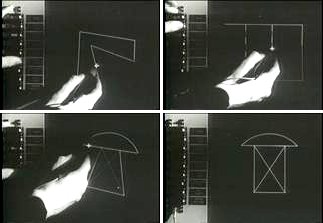
Sketchpad light pen drawing program

1. Sketchpad – Lincoln TX-2 computer – 1963
Light pen-driven vector graphic CAD tool, decades ahead of its time. I remember seeing this on TV in my early childhood and seeing pictures of it (or something like it) in The Ladybird Book of the Computer and being transfixed by it. And I still want a light pen.

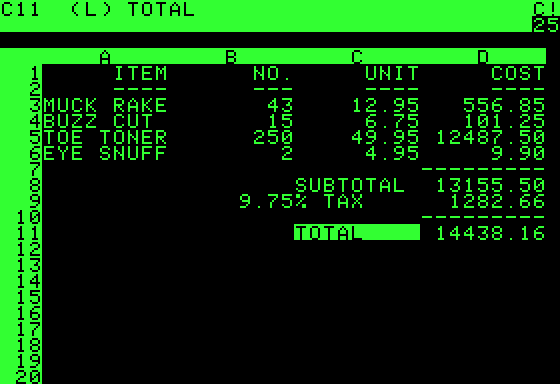
VisiCalc spreadhseet on Apple 2

2. VisiCalc – Apple ][ - 1979
The first electronic spreadsheet, people bought Apple ][ computers just to run it, extending the life of this machine beyond what may have been reasonably expected.

3. Aldus PageMaker – Macintosh – 1985
The original desktop publishing software, the quintessential ‘killer app’ that saved the Macintosh from oblivion and changed the publishing and print industries for ever.

4. WorldWideWeb – NEXT Cube – 1990
First ever web-browser, written by Tim Berners-Lee as part of his new way of sharing information on the Internet. Will never catch on.

WordStar word processor

5. WordStar – CP/M – 1979
The first widely-adopted word processing software, without which there may have been no Microsoft Word.

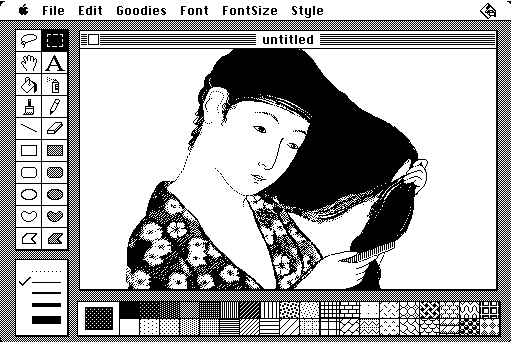
MacPaint

6. MacPaint – Macintosh – 1984
The onlie begetter of Photoshop, Windows Paint and others. Bill Atkinson’s masterpiece really is one of the most elegant and intuitive pieces of software ever written, anyone can pick it up and start creating.

7. Spacewar! – PDP1 – 1962
People had programmed games like Tic-Tac-Toe on computers before this, but Spacewar! Deserves a mention as it could only be played on a computer. This sophisticated vector-graphic game included Newtonian physics, something we take for granted nowadays but which was astonishing for 1962. Without it there would have been no Asteroids.

8. Pong – arcade game – 1972
‘Whatever happened to Pong?’ in the words of Frank Black. Kick-started Atari and the whole popular arcade video-game industry.

Asteroids game screenshot

9. Asteroids – arcade game – 1979
Massively influential vector-graphic arcade game – though I preferred the tank game Battle Zone and the Star Wars game you sat in. Even more popular than…

Space Invaders screen

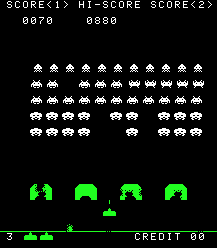
10. Space Invaders – arcade game – 1978
Very influential early arcade game, spawning a huge number of more colourful, complex but (in my view) less satisfying 2D alien shooters.

Posted in computers, gaming, hardware, nostalgia | Tagged , , , | Leave a comment